

Active Sessions: Who Has Access to Your RMM Right Now?
How many active sessions does your RMM account have right now?
Do you know?
Most technicians do not.
And that is a problem that stays invisible until something goes wrong.
1) Why active sessions matter more than you think
An active session means someone — or something — has current access to your account.
You do not need a stolen password if there is a session open from a device that has not been yours for weeks.
You do not need a sophisticated attack if a technician who left the team three months ago still has an active session because nobody closed it.
And in an RMM account, an active session is not access to a folder.
It is access to the terminal, to scripts, and to every device you manage.
Practical tip: check your active sessions today. Not tomorrow. Right now, while you are reading this.
2) The scenarios nobody thinks about
Technician who left the team. They are gone. They returned the work laptop. But nobody revoked their Lunixar session. Technically, they still have access.
Lost or stolen device. Your laptop ended up somewhere it should not be. You had an active RMM session on it. If someone opens it and there is no lock screen, you already know how that story ends.
Forgotten session from another location. You logged in from a client's office, a borrowed computer, a hotel. And you never closed that session.
The problem is not that these scenarios are rare.
It is that they are completely silent until something goes wrong.
Practical tip: every time you log in from a device that is not your usual one, close the session when you finish. Or revoke it from the active sessions list as soon as you get back to your main device.
3) What active sessions show you in Lunixar
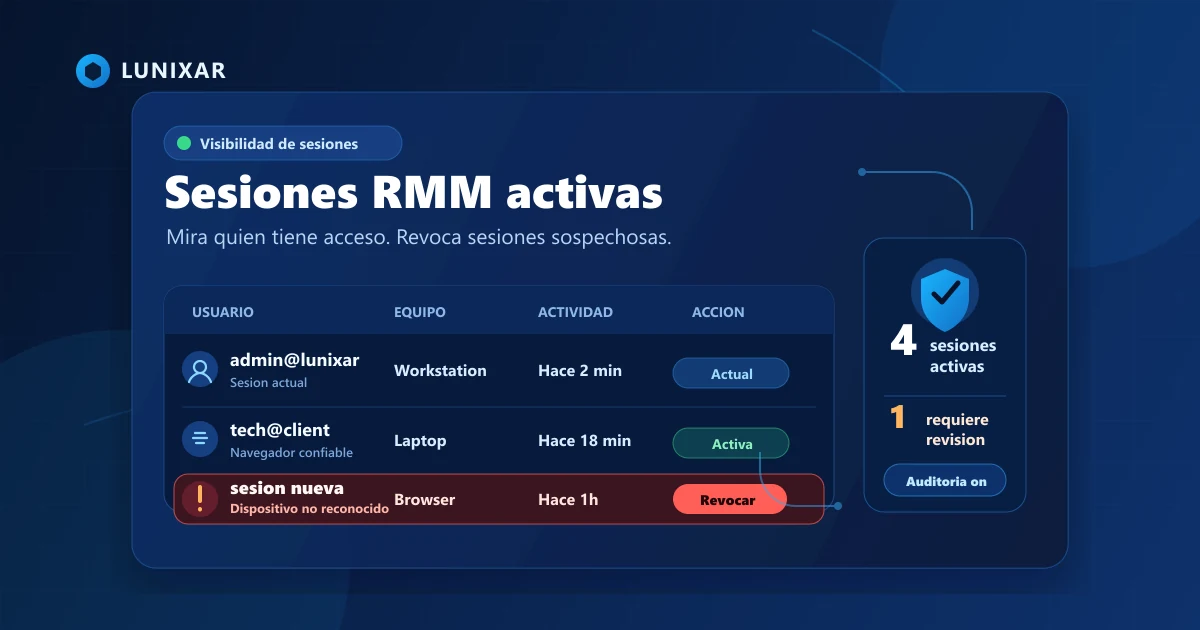
From your Lunixar account profile, you can see all active sessions tied to your user.
Each session shows:
- device information from where the session was opened
- recent activity for that session
That lets you quickly spot anything that should not be there.
And act immediately:
- revoke an individual session if something looks suspicious
- close all other sessions with a single click without needing to change your password
Practical tip: if you see a session you do not recognize, do not wait. Revoke it immediately and change your password.
4) MFA as the complement: sessions have to be earned
Seeing and controlling active sessions is one part of the equation.
The other is making sure nobody can open a new session without your authorization.
That is where MFA comes in.
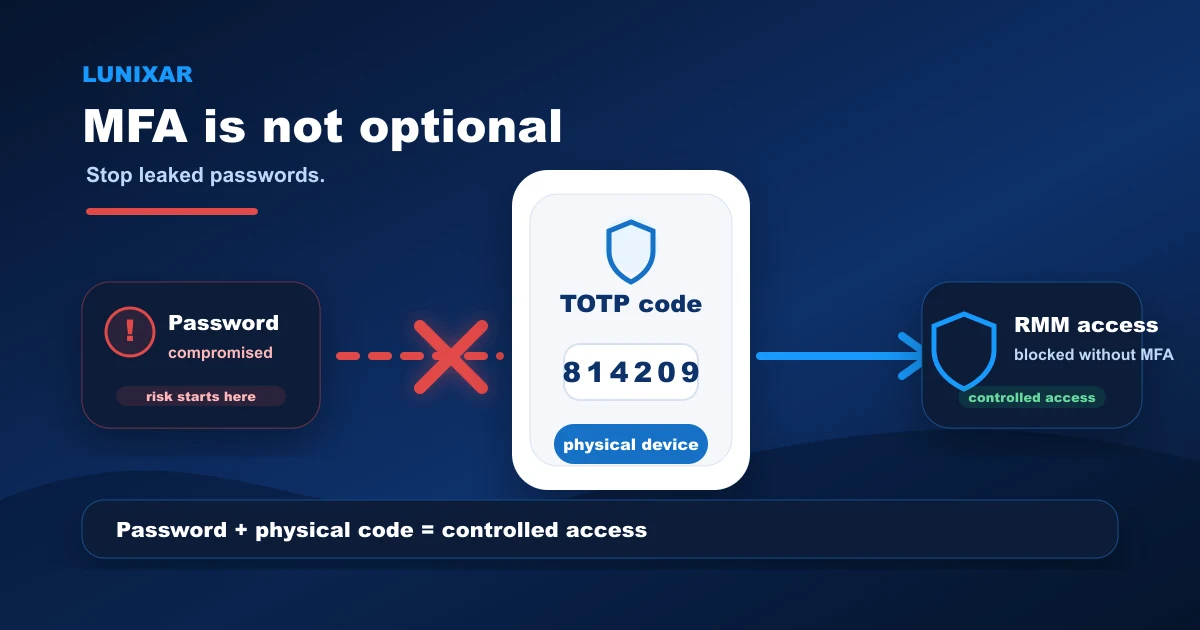
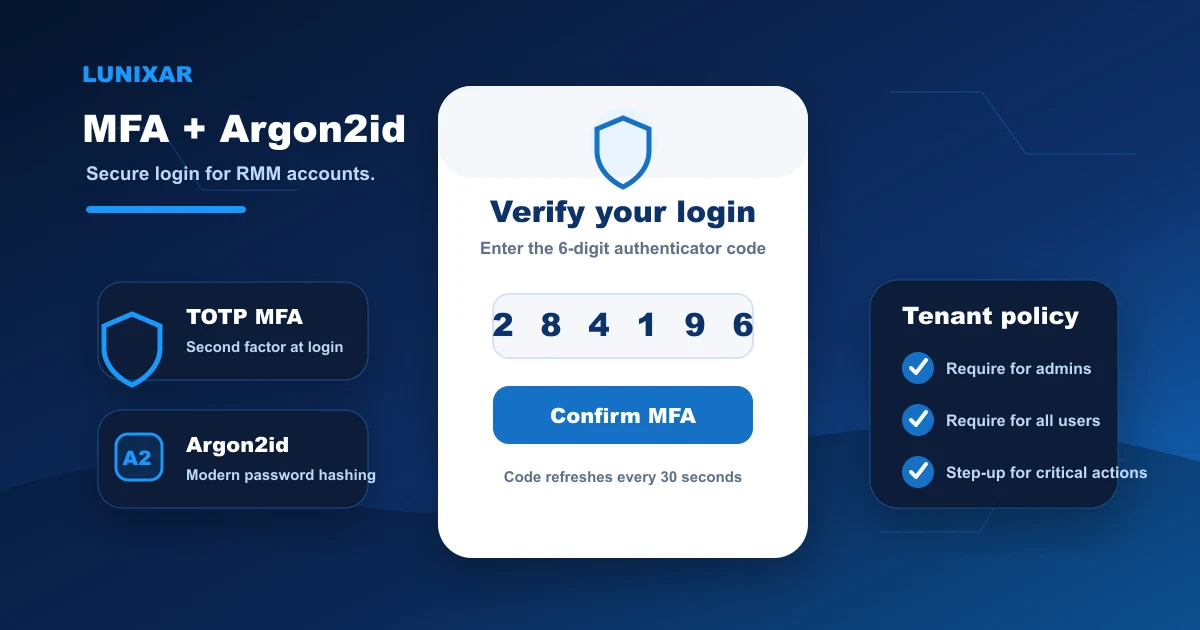
With TOTP active, starting a new session requires your password and a 6-digit code that only exists on your physical device for 30 seconds.
Even if someone has your password, without the code they cannot create a new session.
And if they somehow have access to an existing session for the reasons we just covered, step-up MFA adds a second barrier before they can run any critical actions.
Practical tip: enable MFA if you have not already. Active session control and MFA work together — one protects existing sessions, the other protects new ones.
5) A habit worth adding to your routine
You do not need to check your active sessions every day.
But you should check them at these moments:
- when someone leaves the team
- when you lose or replace a device
- when something feels off
- periodically as part of your regular security review
It is not a complex process. It takes two minutes from your Lunixar profile.
Practical tip: add an active session review to your offboarding checklist every time a technician leaves the team. It is one of the easiest things to do and one of the easiest things to forget.
Closing
Active sessions are not a minor technical detail.
They are the concrete answer to "who has access to my RMM account right now?"
Lunixar RMM shows your active sessions from the profile, lets you revoke them individually, and has MFA to protect new access.
Do the review today.
Operational checklist for access reviews
Treat active sessions as a recurring security control, not as a page you only open when something feels wrong. A good habit is to review them during offboarding, laptop replacements, security incidents, and internal audits.
For teams with multiple technicians, document who reviewed sessions, which sessions were revoked, and whether a password change or MFA follow-up was needed. That traceability helps prove control when a customer asks how you protect RMM access.