

Why MFA on Your RMM Is Not Optional
Someone gets your password.
Maybe a phishing email. Maybe a breach at some other service where you used the same credentials.
Without MFA on your RMM, that is not just a compromised password.
It is access to terminals, scripts, and every device you manage.
1) An RMM account is not like other accounts
A compromised email account is a problem.
A compromised RMM account is a problem at scale.
From there, someone can run scripts across your entire fleet, open terminals on remote devices, generate installers, and see everything running on every endpoint.
So the question is not whether you should protect that account with MFA.
The question is why you would wait.
Practical tip: treat your RMM account the same way you treat access to your most critical server. The risk level is the same.
2) Passwords alone are not enough anymore
Credential leaks are far more common than they seem.
Not because someone attacked your company directly.
But because at some other service where you used the same email and password, there was a breach. And when those credentials land in the wrong hands, attackers try them everywhere.
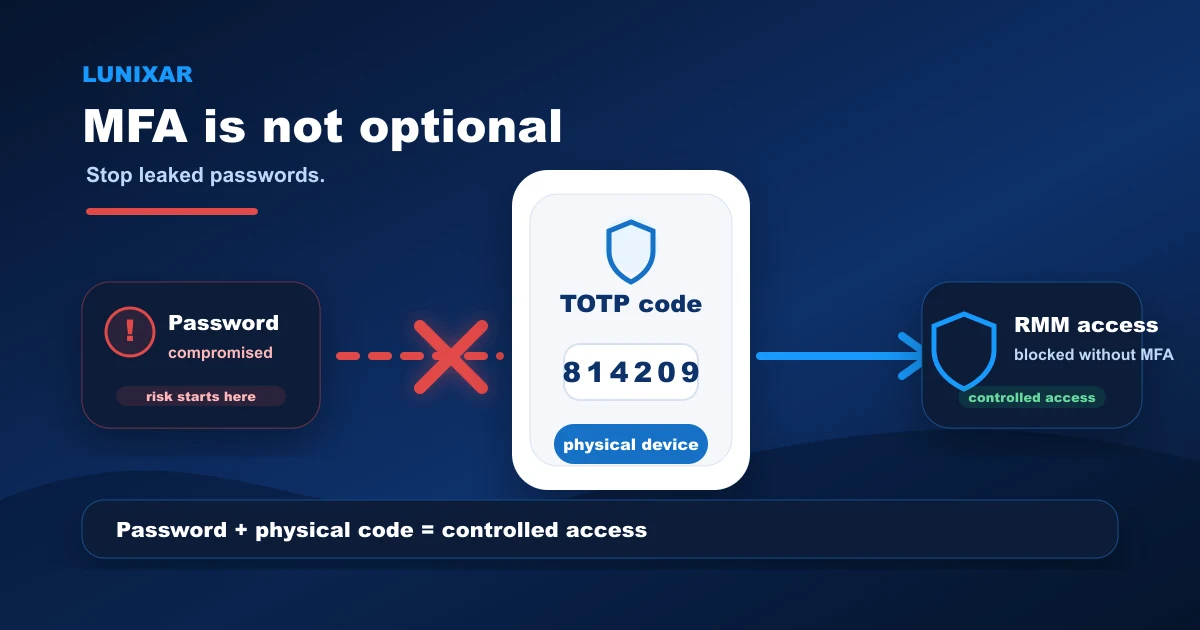
leaked credentials → login attempt on your RMM → no MFA in the way → access to the fleet
MFA cuts that chain before it reaches the end.
Practical tip: check whether you reuse your RMM password at other services. If you do, change it now and enable MFA before you close this page.
3) What MFA actually does
With MFA enabled, logging in requires two things:
- Your password.
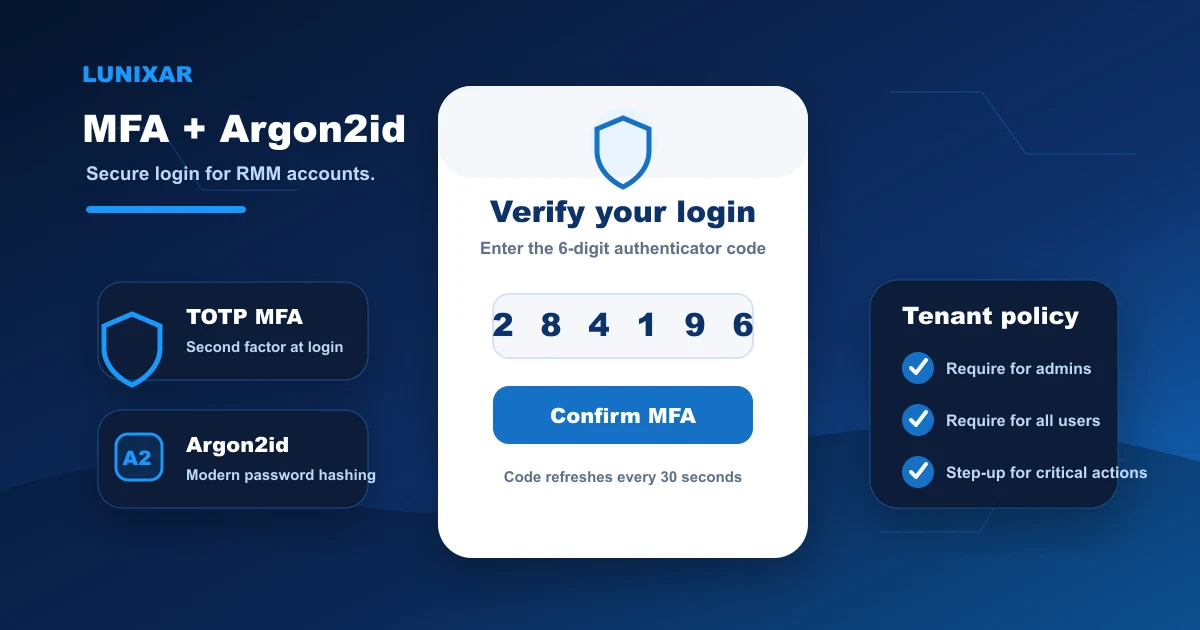
- A 6-digit code generated by your authenticator app, which changes every 30 seconds.
Even if someone has your password, without the current code they cannot get in.
And since that code expires in seconds and is generated locally on your device, it cannot be stolen the same way a password can.
Lunixar uses TOTP — the standard supported by Google Authenticator, Authy, Microsoft Authenticator, and any other compatible app.
Practical tip: use a dedicated TOTP app, not SMS. SMS can be intercepted. Authenticator apps generate the code locally on your device, with no phone network involved.
4) Step-up MFA: when an active session is not enough
Here is a scenario most people do not think about.
Your session is active. You are working normally. And someone who has taken control of your computer tries to push a script to your entire fleet.
Step-up MFA exists for that scenario.
For critical actions — running fleet scripts, generating installers, accessing the remote viewer — Lunixar requires a recent TOTP code even when the session is already authenticated.
It is a second check right before the riskiest action.
Practical tip: do not disable step-up because you think you "already logged in with MFA." Step-up protects against scenarios where the session is active but you are not the one sitting at the keyboard.
5) What you can enable in Lunixar today
From your Lunixar account profile you can:
- Enable MFA with any TOTP authenticator app.
- Save your recovery codes for emergencies — store them somewhere safe, not on the same device.
- Set your tenant MFA policy if you manage a team: require it only for admins or for all users.
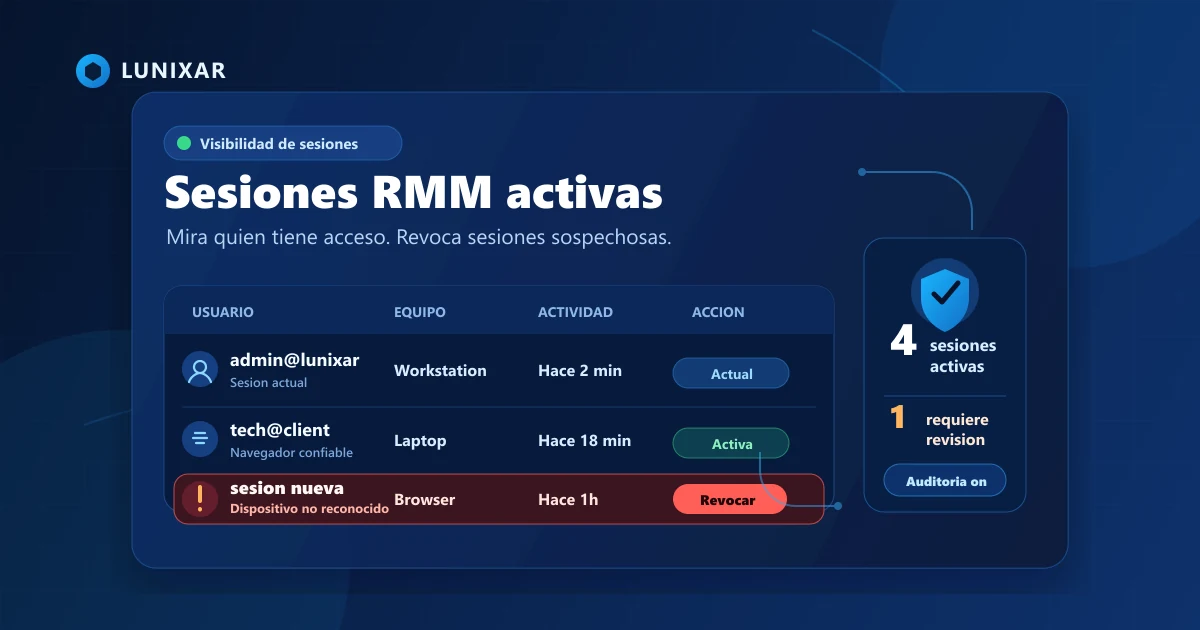
- View and revoke active sessions if you suspect unauthorized access.
Practical tip: enable MFA on your account, then check your active sessions. If you see anything you do not recognize, revoke it immediately.
Closing
Your RMM account is the most powerful access point in your IT operation.
Protecting it with MFA is not a technical formality.
It is the most direct decision you can make to reduce the real risk of an intrusion.
Lunixar RMM has MFA active today: TOTP, step-up on critical actions, and sessions visible from your account.
If you have not enabled it yet, now is the time.