

There are two kinds of IT teams.
The ones that find out about problems once the user is already suffering through them.
And the ones that find out first.
The difference between them almost always comes down to the same thing: knowing what you have.
Not a spreadsheet with device names on it. Actually knowing — what drive is in the laptop that's "always slow," how much free RAM it has right now, what software landed on it last week without anyone saying a word.
Without that, you're guessing. And guessing in IT gets expensive fast.
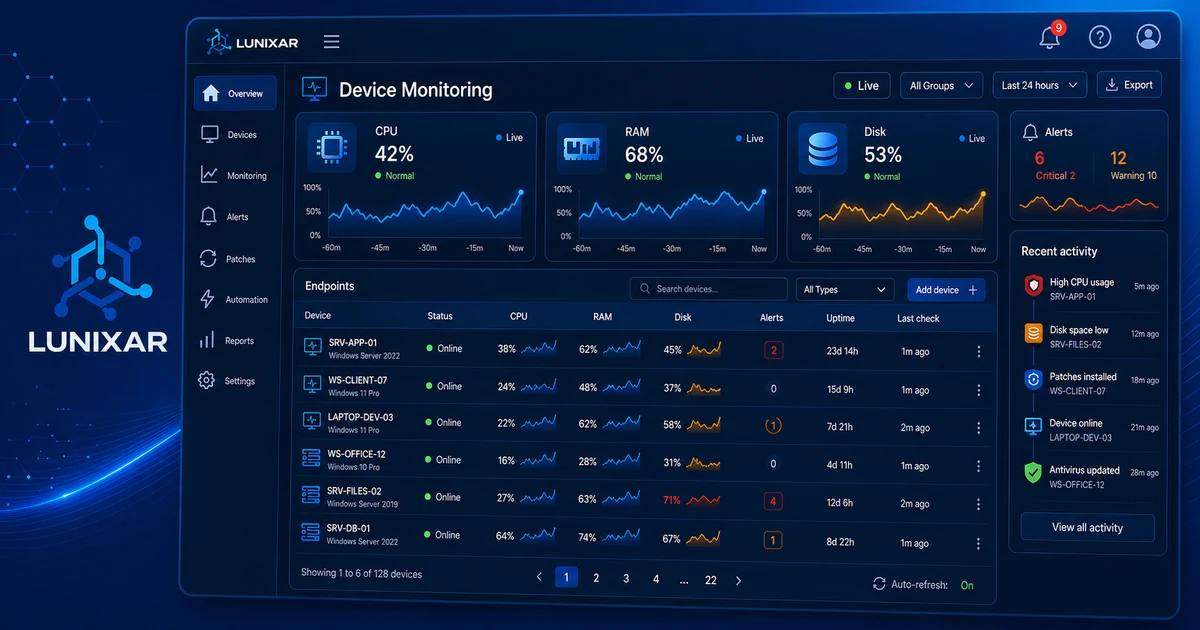
Centralized device management starts here. Before remote access, automation, patching, or reports can work well, the team needs a trustworthy view of every managed endpoint and its current state.
1) You can't protect what you don't know
This is the most basic rule in IT management. And the one that gets ignored the most.
Quick check: how many devices are under your management right now? What exact Windows version is on each one? What software is installed? How much free RAM does "the laptop that always runs slow" actually have? When did anyone last check the drive health?
Without an active inventory, those questions get answered four ways: by luck, by wasting time, by going on-site, or not at all.
With a real-time inventory, the answer's there before you finish asking.
2) Hardware, software, and snapshots: three layers that pull their weight
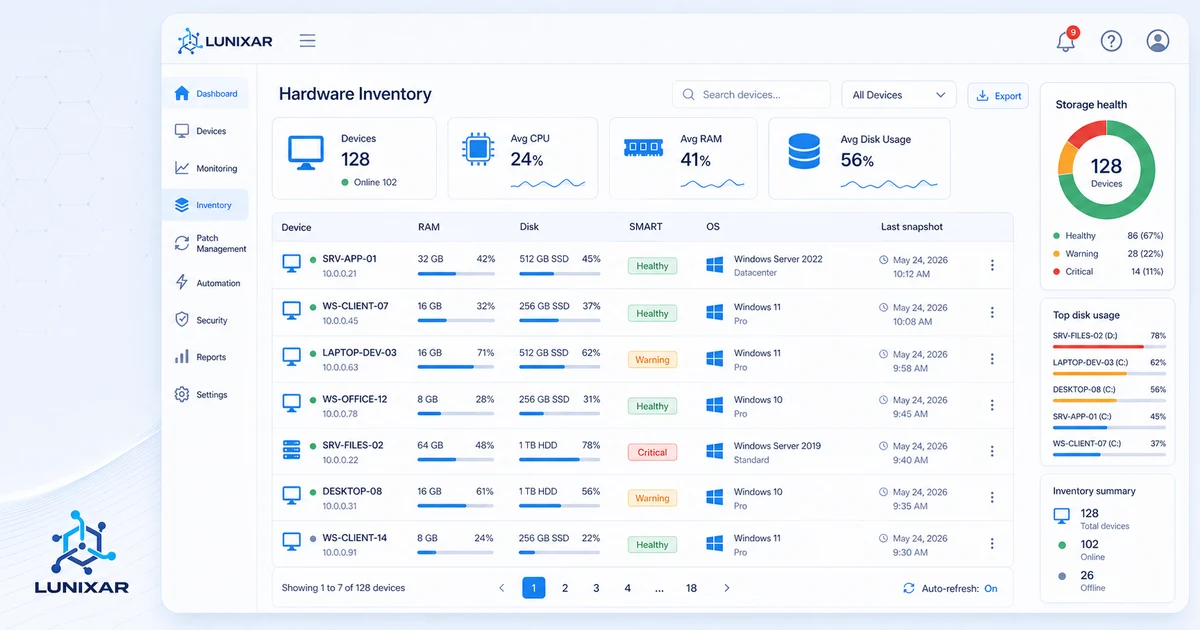
A useful inventory doesn't stop at "what hardware does this device have." You need at least three layers.
Hardware: processor, RAM, storage, displays, peripherals. Everything that physically exists on the device and its current state.
Software: what apps are installed, at what version, and — crucially — which ones shouldn't be there at all. This layer is what saves you on security, licensing, and support calls.
Snapshots: the history. Not just "what does it have today" but "what did it have last week, what changed, and when." When something breaks, a snapshot tells you exactly what was different before.
Snapshots are especially useful when a device "suddenly stopped working right." Without history, you're investigating from scratch. With snapshots, you compare current state to the last known-good and find the difference in seconds.
3) SMART: your drive is warning you before it fails — are you listening?
Drives don't fail out of nowhere. They fail with warning signs… that almost nobody is reading.
SMART (Self-Monitoring, Analysis and Reporting Technology) is built into most modern drives. It tracks internal attributes: reallocated sectors, read errors, temperature, spin-up time. Metrics that tell you whether a drive is healthy or quietly dying.
The problem is those warning signs are invisible unless someone's reading them.
An agent that monitors SMART attributes can alert you when a drive starts showing signs of imminent failure — before any data is lost. That gives you a window to act: run a backup, plan the replacement, migrate files, loop in the user. All with time to spare.
Without that visibility, the flow goes: drive fails → user loses work → you scramble to see if anything's recoverable.
With SMART visibility: drive starts degrading → you get an alert → you act before the disaster.
4) Inventory as step zero for every ticket
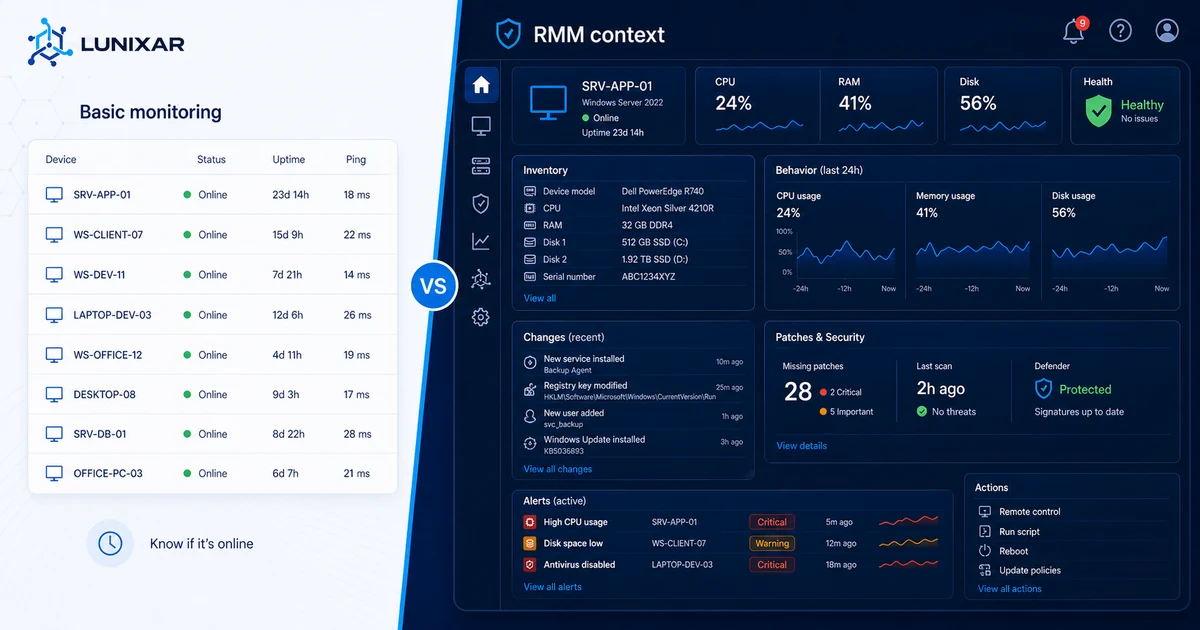
When a ticket comes in, the first thing you need isn't a remote session. It's context.
- What OS is it on, exact version?
- How much free memory right now?
- Any pending updates?
- Did anything get installed this week?
- When was it last online?
With an active inventory, all of that already has an answer before you even open a session. Shorter diagnosis, no more screenshot ping-pong with the user, and you show up with a hypothesis instead of showing up to guess.
The difference between a tech who "investigates" and one who "verifies" is almost always how good their inventory is.
5) Inventory + alerts: the combo that changes how you operate
Inventory alone tells you the state. Alerts tell you when that state changes in a way that matters.
When both work together, the reactive spiral stops:
- Low disk space → inventory shows the level, alert fires when it crosses the threshold
- Unexpected software installed → snapshot catches the change, comparison surfaces it
- Degrading drive → SMART attributes show the trend, alert arrives before the failure
That loop — inventory informs, alert notifies, tech acts — is what separates a proactive IT operation from one that always finds out too late.
And the best part: it doesn't take more headcount. It takes better visibility.
What centralized device management should include
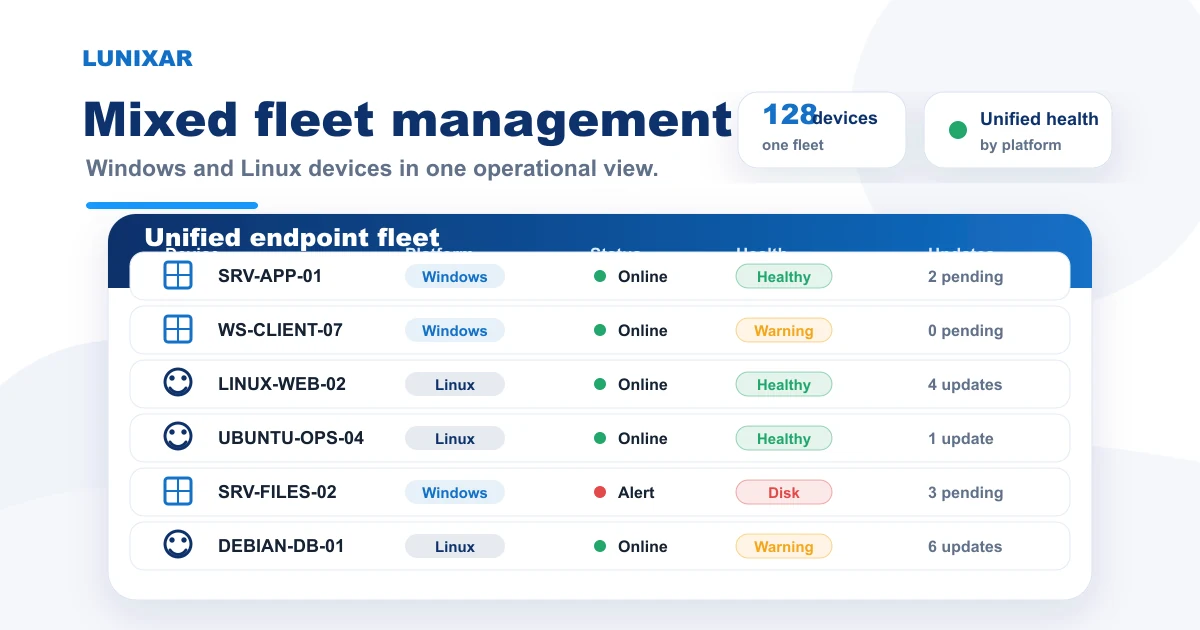
Centralized device management is not just a list of computer names. A useful system should connect:
- hardware inventory, including CPU, RAM, disks, and device health;
- installed software and version visibility;
- historical snapshots to see what changed;
- monitoring signals and alerts;
- patch status and pending reboot context;
- remote actions that can be taken without opening a separate tool.
That is the difference between a static asset list and an operational console. The first tells you what should exist. The second helps you decide what to do next.
For MSPs, centralized device management also needs customer separation. For internal IT teams, it needs grouping by organization, department, location, or responsibility. In both cases, the goal is the same: fewer blind spots and faster decisions.
Closing
If you're still finding out about the state of your devices when the user calls you, inventory is the first thing to fix.
Not because it solves everything. But because without it, everything else — alerts, automation, remote support — only works at half capacity.
Lunixar RMM keeps an active hardware and software inventory per device, with historical snapshots and SMART analysis built into the agent. All from the same console where you're already managing your fleet.
If you want to go from fighting fires to preventing them, this is where you start. You can also review centralized device management in Lunixar to see how inventory, monitoring, patching, and remote actions connect in one workflow.