

The user calls. "My computer is acting weird." You ask how weird. Silence. "I don't know, slow or something."
Without monitoring, that's the start of a 30-minute story: connect, investigate, ask, rule things out. With monitoring, you often already knew something was wrong before they called.
But "monitoring" covers a lot of ground. Here's what it actually means in depth: what you see, what triggers alerts, and how to go from detection to resolution without guessing.
1) What monitoring shows you in real time
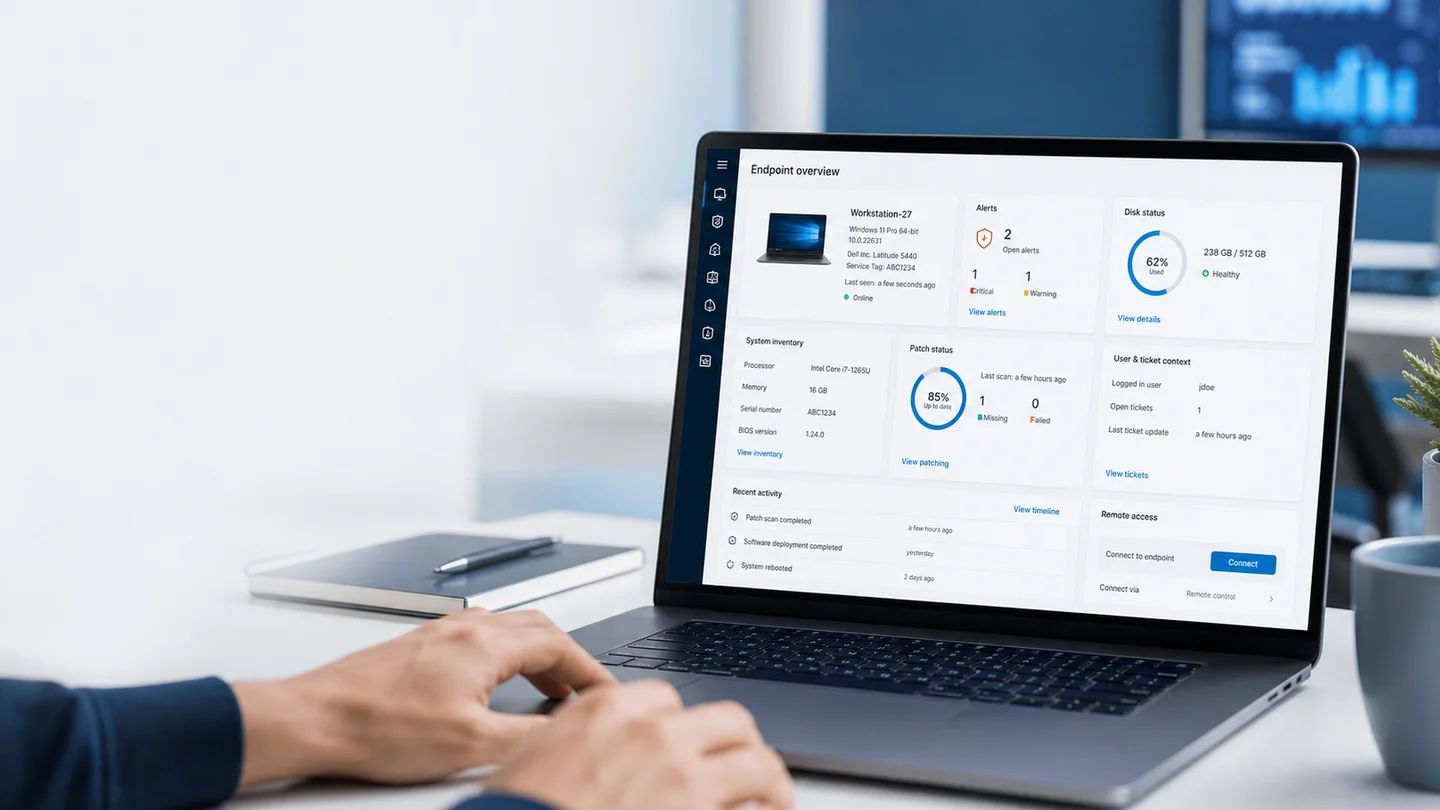
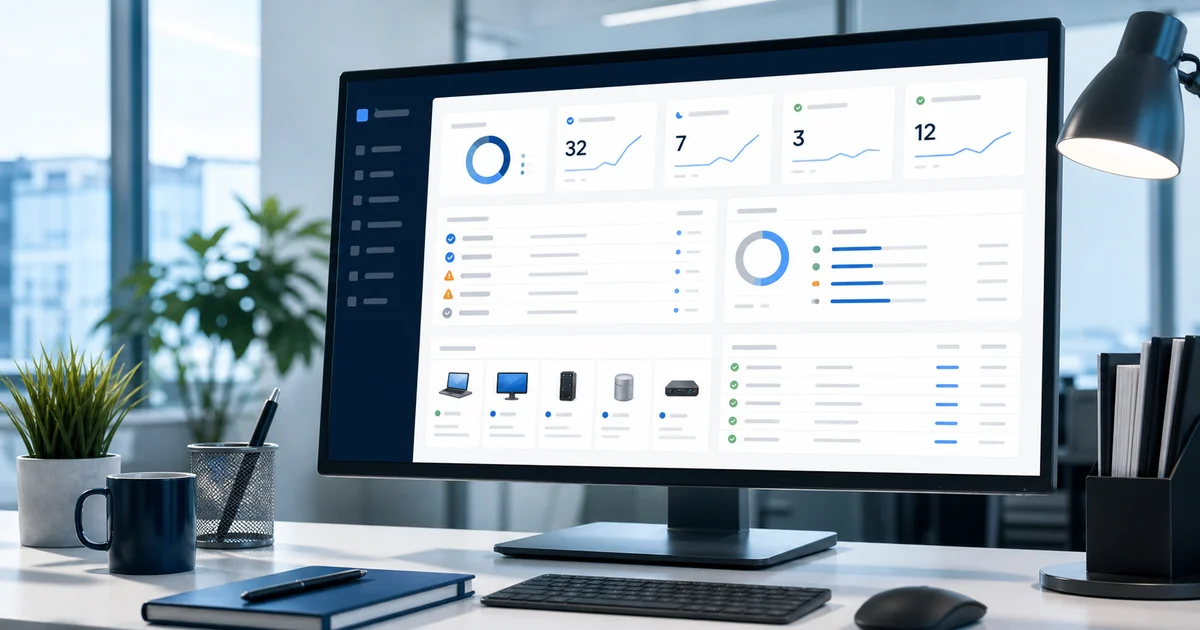
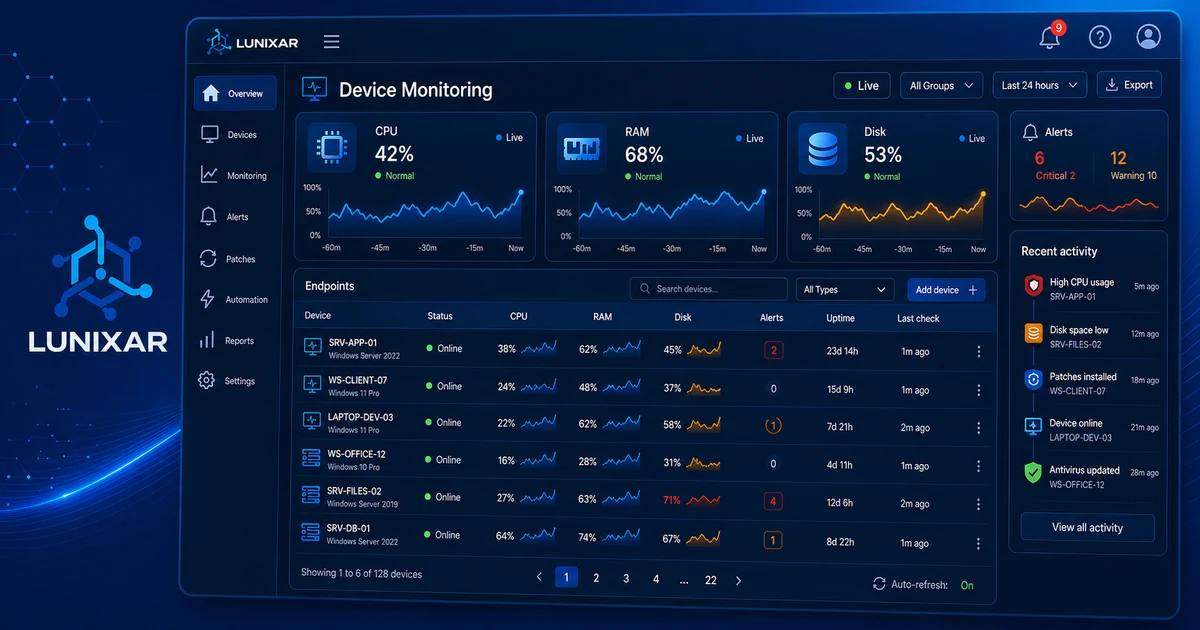
The status of every managed device is visible in the portal: online, offline, with active alerts, or without recent activity.
But the value is in the detail:
- CPU and RAM: current usage and trend evaluated over a sustained period. It doesn't alert on a brief spike — it alerts when the problem persists.
- Disk: usage percentage per volume, with configurable alerts before you hit the limit.
- Windows services: which are running, which stopped, which failed to restart.
- Active processes: what's consuming resources right now.
- Last agent check-in: to catch devices that lost contact before anyone reported anything.
2) Performance alerts: act before it blows up
Alerts aren't for when something already broke. They're for when you can still do something about it.
The most useful ones day to day:
- LowDiskSpace: the classic. A device at 95% disk usage doesn't fail overnight, but it will ruin your week if you ignore it.
- DiskSmartPredictedFailure: the drive is reporting internal errors. This alert is worth gold — it warns you of a hardware failure before it happens. Time to act = time to back up.
- Sustained CPU and RAM: if usage stays high over a sustained period, the alert fires. It's not a two-second spike — it's a hung process or an application that got away from itself.
The value here isn't knowing something failed. It's knowing something is about to fail.
3) Security alerts: what's happening without anyone telling you
This group is the most critical — and the most likely to go unnoticed without an RMM.
Antivirus and Defender alerts:
AntivirusDisabled: someone turned off the antivirus. Could be a user, could be malware.MalwareDetected: Defender found something. The alert reaches you before the user tells you (if they ever do).DefenderExclusionAdded: an exclusion was added to Defender. In uncontrolled environments, that's a red flag.
Security event alerts:
FailedLoginBurstandAccountLockoutBurst: multiple failed attempts or accounts locked in a short window. Could be a user who forgot their password — or a brute-force attempt.SecurityLogCleared: the security event log was cleared. There are very few legitimate reasons for this.PrivilegedGroupMembershipChange: someone was added to a privileged group (Administrators, for example).AuditPolicyChanged: the system audit policy was modified.
Those last four are the kind of alert nobody sees until they run an audit — if they ever do.
4) Inventory and snapshots: the context that explains everything
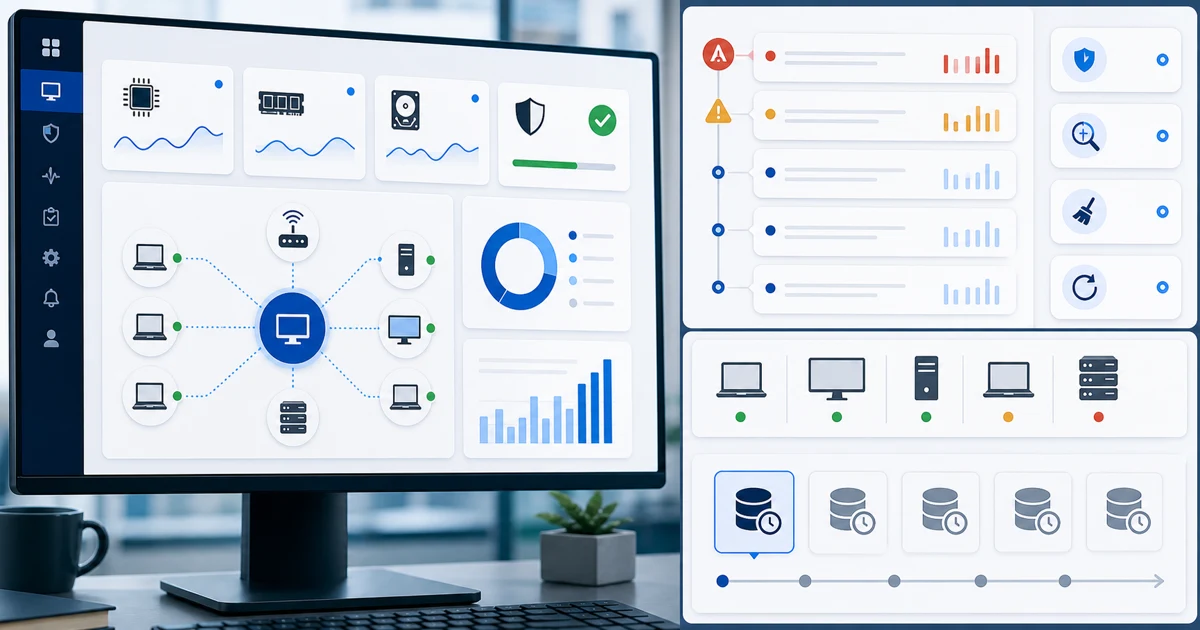
Hardware and software inventory is tracked independently per device. It's not a static snapshot: up to 5 historical snapshots per device are stored, so you can compare before and after an incident.
What does that mean in practice?
- See what software was installed or removed between the last snapshot and today.
- Confirm whether hardware components changed (RAM, disk, network card).
- Check the OS version and whether updates are pending.
- Have full context before opening a remote session: what device is it, what does it have, what changed.
This is especially useful when a user says "it worked fine before" and doesn't know what changed. The answer is almost always in the inventory.
5) Remote Defender actions: from monitoring to resolution
Monitoring doesn't stop at the alert. For Windows devices, you can act directly on Windows Defender from the portal:
- QuickScan: fast scan of the most common infection areas.
- FullScan: complete system scan.
- UpdateSignatures: update virus definitions without user involvement.
- RemoveThreats: remove threats that Defender has already identified.
These actions can be applied individually or across the entire fleet at once (bulk actions). If you get a MalwareDetected alert on several devices at the same time, you don't have to connect to each one — you launch the action from the portal and the devices execute it.
One important note: if a device uses a different antivirus instead of Windows Defender, monitoring shows that antivirus status (active/inactive, last update), but remote actions are only available for Defender. The same applies to Linux: Linux devices have inventory, but no remote actions and no patch management.
Closing
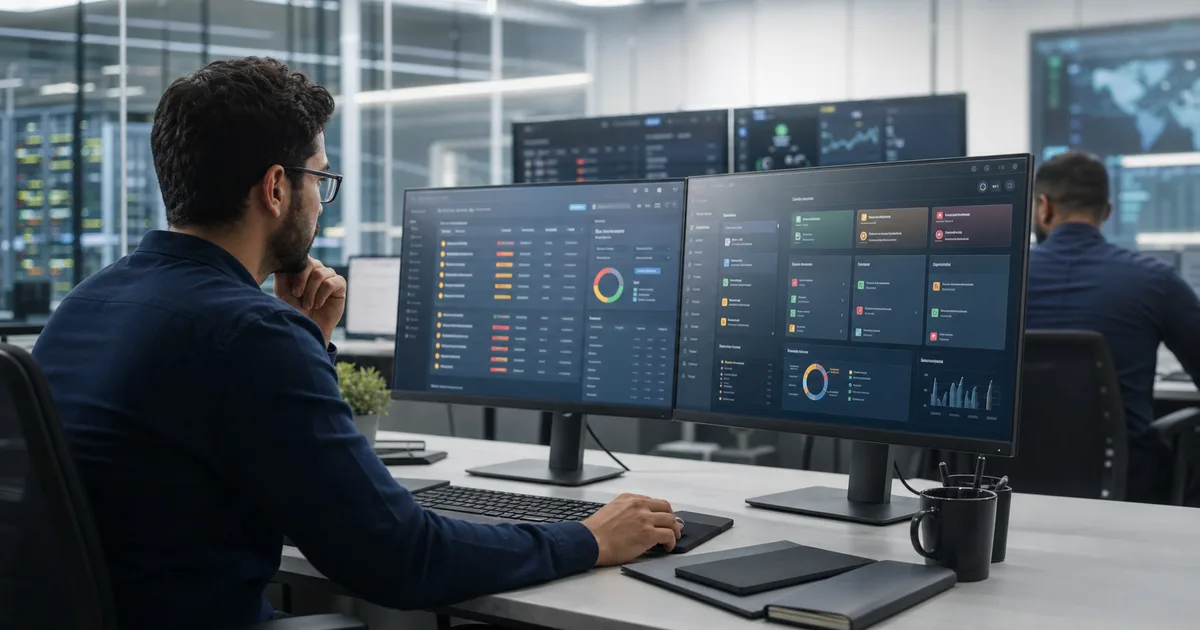
Device monitoring isn't an extra feature. It's the difference between operating reactively (someone tells you, you run) and operating in control (you see the problem, you act before it blows up).
With real-time metrics, performance and security alerts, inventory history, and Defender actions from the portal, the workflow changes: fewer calls about "the computer being weird," more silent interventions the user never notices because the problem never arrived.
Lunixar RMM brings all of this together in one place: monitoring, alerts, inventory, and remote actions without jumping between tools. If you want to see how it works on your fleet, the 2-week trial requires no credit card.
Related reading to keep going
If you want to turn this topic into a real operating workflow, continue with these guides: