

Remote support is the complete workflow for diagnosing and resolving a problem at a distance with context, permissions, audit trails, and follow-up. Remote access is only the ability to get into the device.
Even when sales pages make them sound identical, they are not the same. For an MSP, remote access means getting in; remote support means resolving with control.
A tool can open a screen, move the mouse, and run actions. But without clear permissions, endpoint context, audit trail, and follow-up, what you have is a remote door. Not necessarily a support workflow.
1) Remote access is the ability to get in
Remote access answers one simple question:
Can I connect to this computer without standing in front of it?
That is useful when you need to review a screen, fix a setting, install something, validate an error, or help a user who cannot explain what they are seeing.
But by itself it does not tell you:
- who authorized the session;
- which permissions the technician had;
- which endpoint was tied to the case;
- what happened before the connection;
- what happened during the session;
- how follow-up was closed.
That is the gap.
For a small team, some of that may live in the technician's head. For an MSP with multiple clients, it becomes fragile fast.
2) Remote support is the full workflow
Remote support starts before the screen opens.
It starts when an alert, ticket, call, or user says, "my computer is acting weird."
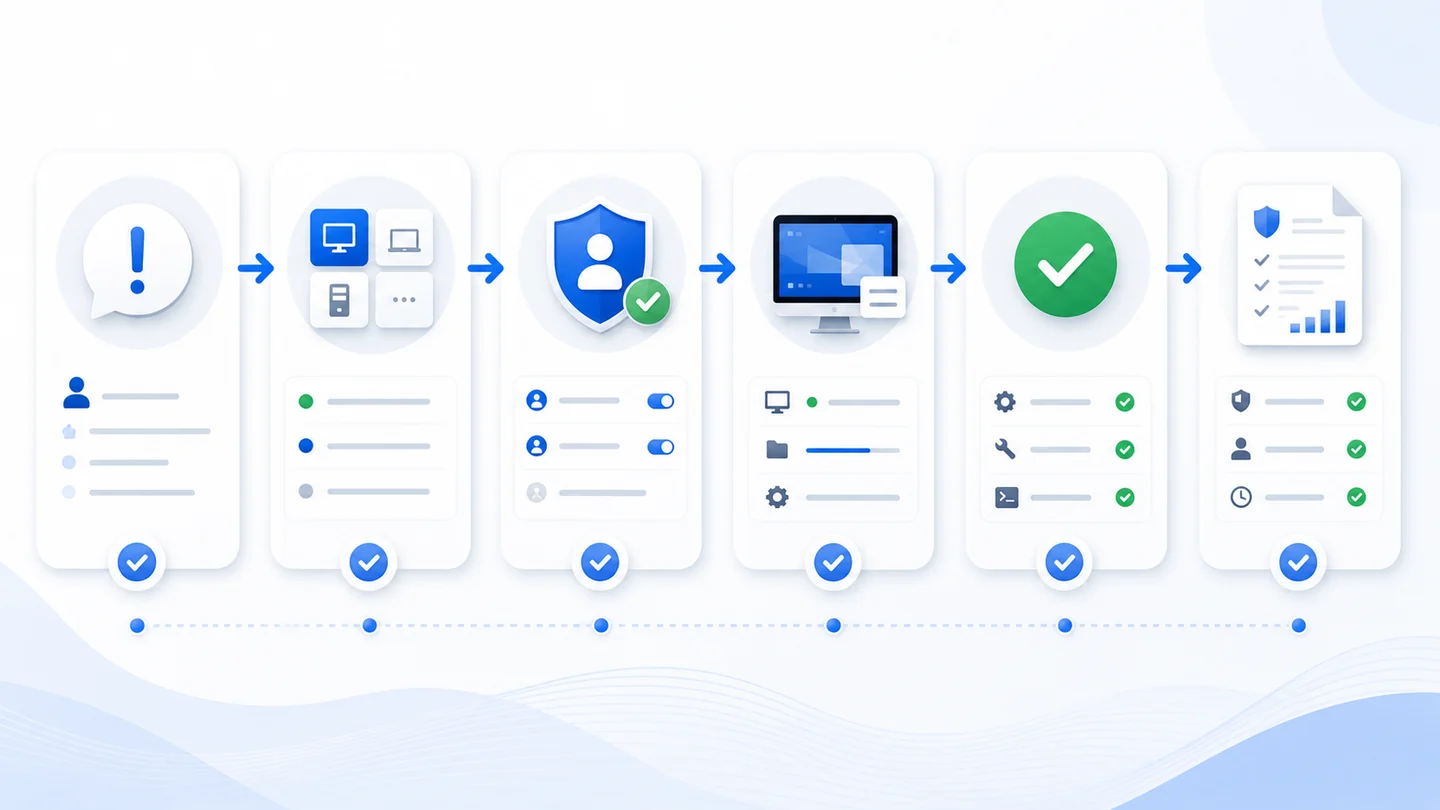
A useful workflow connects:
- request or ticket;
- user or client;
- affected endpoint;
- inventory;
- recent alerts;
- patch status;
- technician permissions;
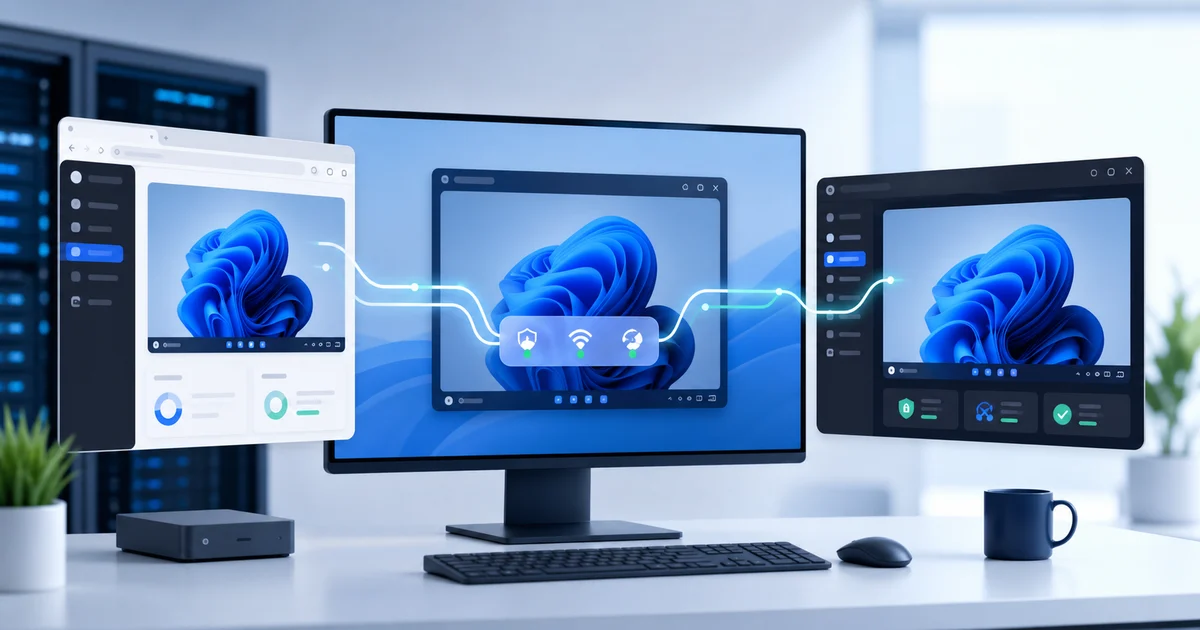
- remote session;
- closure evidence.
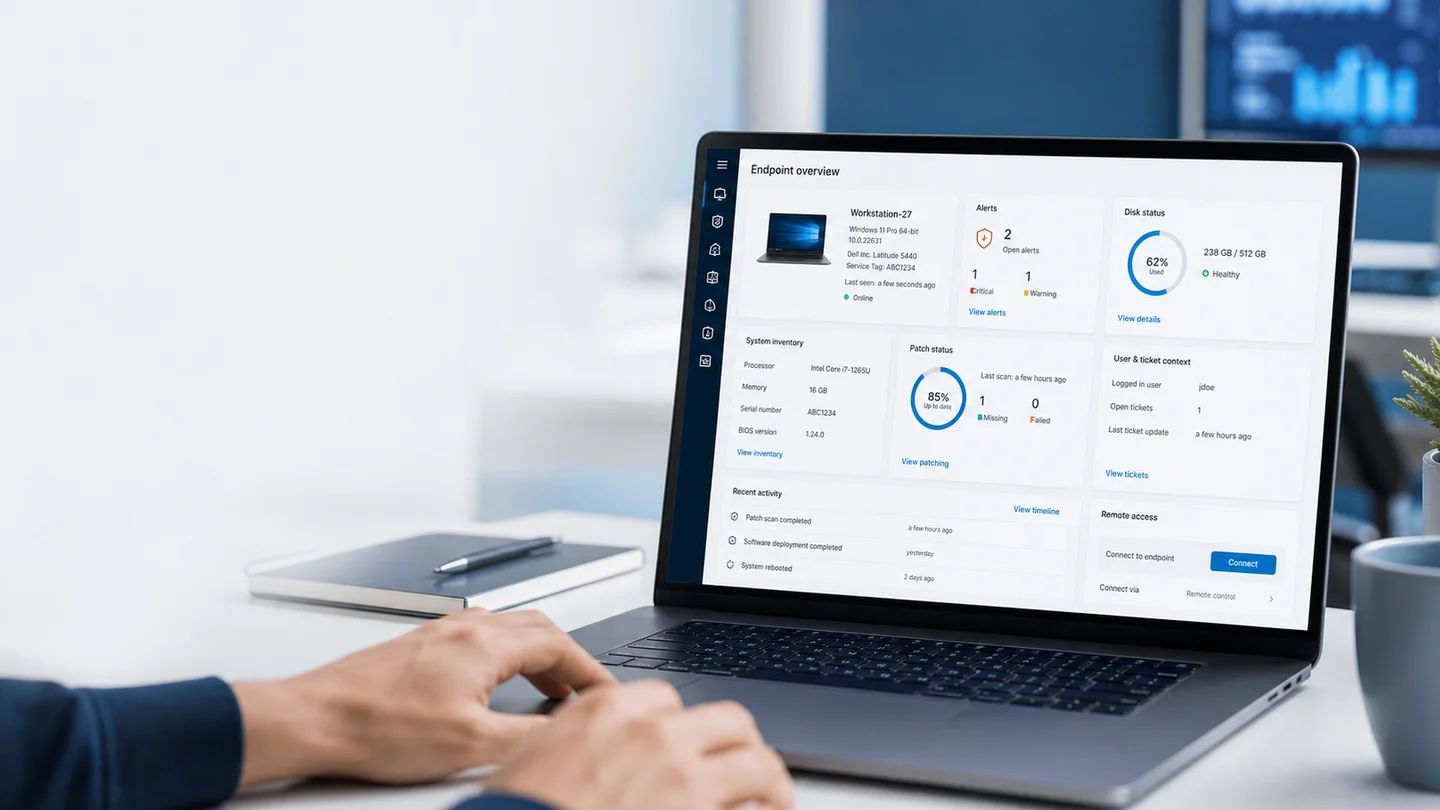
That is why it is better to think about it inside an RMM instead of as a loose standalone tool. If the technician connects without context, they waste minutes asking what the system should already know.
The CISA guide for securing remote access software emphasizes controls such as MFA, account management, monitoring, and secure configuration. In MSP terms: the remote session should not live outside the rest of your control model.
3) The risk is not connecting: it is connecting without limits
Remote access becomes dangerous when everyone can do too much.
A shared account. A technician with global permissions. A session with no log. A client endpoint where nobody knows who connected.
That does not scale. And when something goes wrong, it is hard to explain.
NIST SP 800-46 treats telework and remote access as part of an architecture with policy, authentication, devices, and network protections. The lesson for MSPs is direct: "it works from outside" is not enough. It has to work with rules.
In practice, those rules should cover:
- MFA for sensitive accounts;
- RBAC to separate permissions by role;
- authorization before sensitive sessions;
- event logging;
- clear ticket closure;
- periodic review of accounts and access.
4) Context changes support quality
Two technicians can open the same computer.
One connects blind. The other connects with history.
You can feel the difference.
With context, the technician can see whether the endpoint drops offline, whether a patch failed, whether disk space is low, whether antivirus reported something, or whether the user already has a related ticket.
That connects remote access with support tickets in an RMM, device monitoring, and WebRTC remote access in Lunixar RMM.
Microsoft explains that Conditional Access uses signals such as user, device, location, application, and risk to decide whether to allow, block, or require additional controls. That example lives in identity, but the idea applies to support: a remote session should consider context, not just credentials.
5) What an MSP should look for
Quick check:
Does the tool help you resolve the issue, or does it only help you connect?
For MSPs, a practical option should cover:
- fast session start;
- role-based control;
- MFA where it applies;
- event audit trail;
- ticket relationship;
- endpoint visibility;
- continuity when the network gets messy;
- closure with evidence.
If remote support lives outside inventory, alerts, and tickets, the technician ends up jumping across tabs. Every jump costs time.
Sources
- CISA: Guide to Securing Remote Access Software
- NIST SP 800-46: Guide to Enterprise Telework, Remote Access, and BYOD Security
- Microsoft Learn: Conditional Access
Closing
Remote access is a capability.
Remote support is an operation.
For an MSP, the difference is control, context, permissions, audit trail, and follow-up.
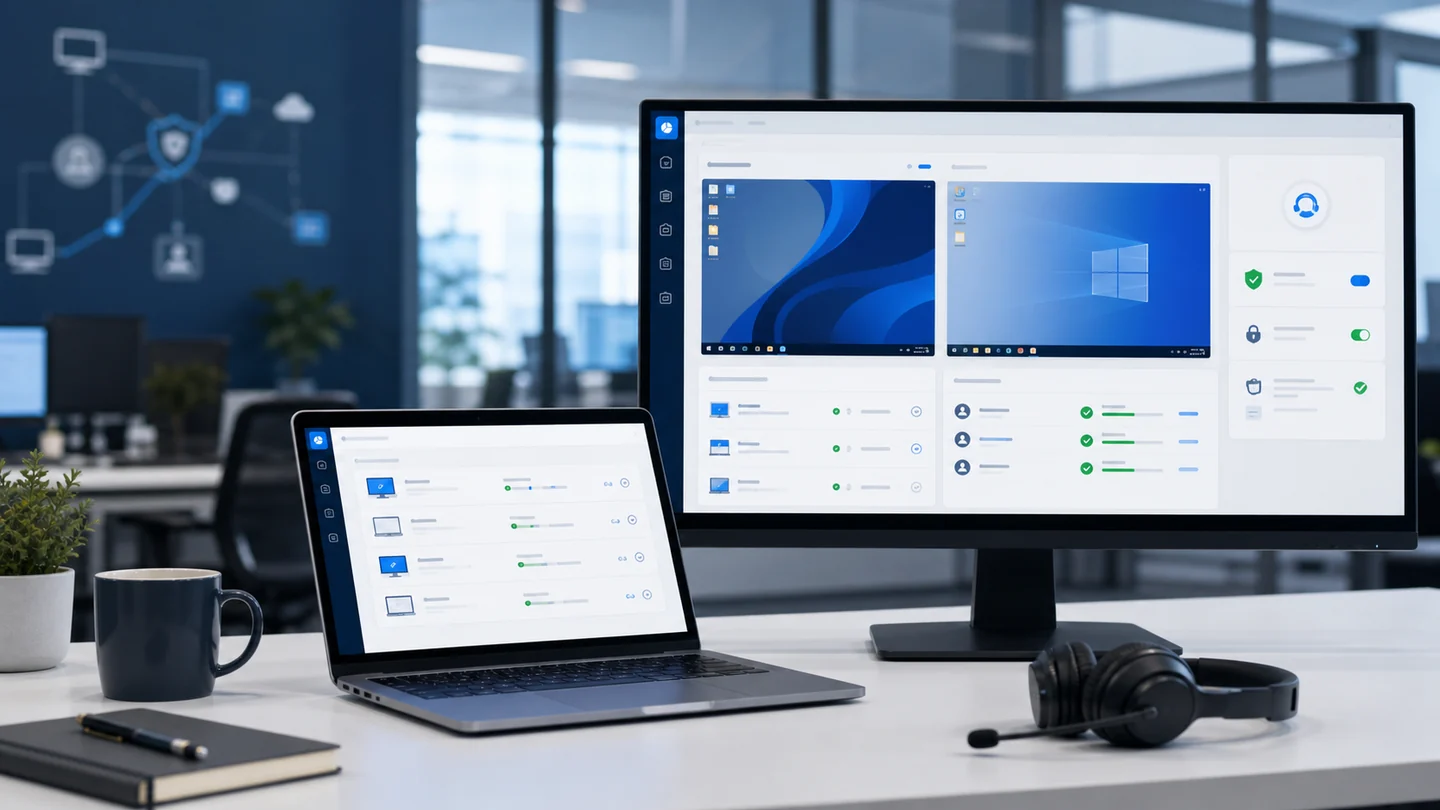
With Lunixar RMM, remote support can live alongside monitoring, inventory, alerts, tickets, and remote connection. That helps the technician do more than get into the computer. It helps them resolve with context and leave evidence for the next step.