

If you use AnyDesk or TeamViewer today, your workflow is probably simple: someone calls, you connect, fix the visible issue, and move on to the next ticket.
That workflow works when you manage a small number of machines. It stops being enough when you need to know what is happening across 20, 80, or 200 endpoints before the user reaches out.
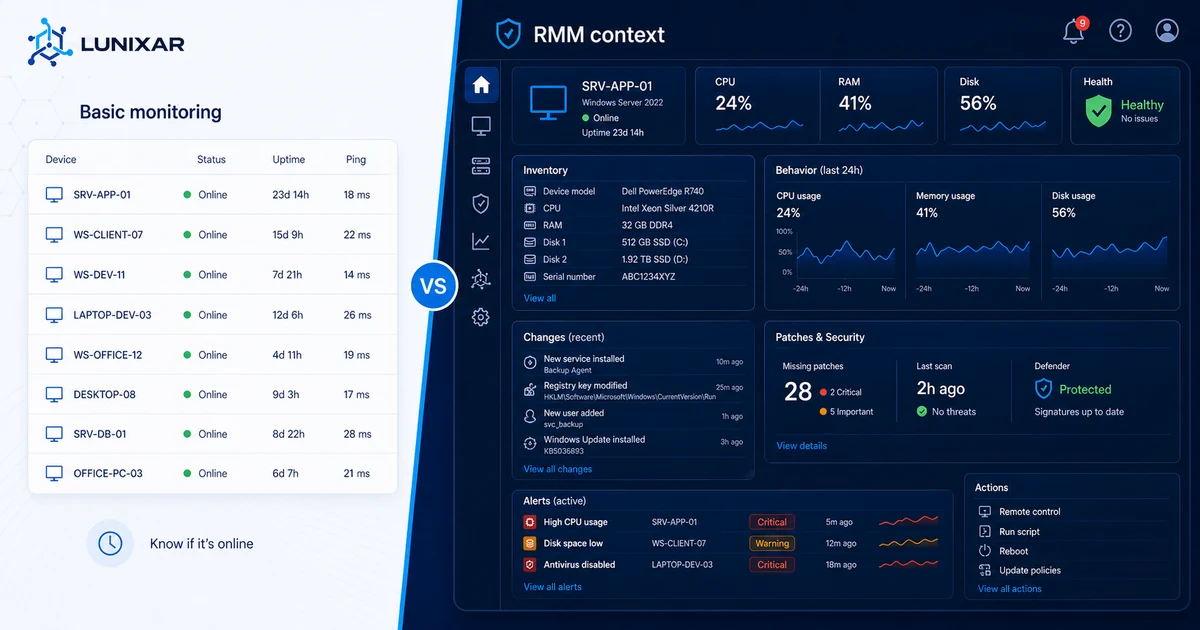
That's the line between remote access and RMM. TeamViewer and AnyDesk are useful tools for getting into a computer. RMM is for managing many computers with context: monitoring, inventory, alerts, patching, remote actions, and evidence.
The fair comparison isn't "which app starts a remote session faster." The real question for IT support and MSPs is:
Do you only need to connect when someone calls, or do you need to operate a whole fleet without losing control?
TeamViewer describes TeamViewer Remote as software for connecting to another computer from anywhere, and AnyDesk documents connection flows using an ID, alias, or unattended access. NIST, on the other hand, frames patch management as preventive maintenance, and CISA recommends strong controls for remote access software. That difference in scope is the point.
1. TeamViewer and AnyDesk solve a clear need: getting into the device
TeamViewer and AnyDesk are strong when the issue already exists and you need to see the user's screen.
Sound familiar?
- the customer calls;
- they say "my computer is slow";
- you ask them to open the remote tool;
- you connect, check, and fix.
That's valuable. Very valuable.
TeamViewer Remote documentation presents it as remote access software for connecting to another computer. The AnyDesk guide for connecting to a remote device explains the base flow: install AnyDesk, use the remote device ID or alias, and start the session according to the configuration.
In other words: they're very good tools for reaching one machine.
The problem starts when your work isn't one machine anymore. First it's 20 endpoints, then 80, then several clients, schedules, priorities, missing patches, full disks, disabled antivirus, and endpoints nobody knows are still alive.
2. RMM doesn't start with a remote session; it starts with visibility
With traditional remote access, most work starts when someone complains.
User calls -> you ask questions -> you connect -> you investigate -> you fix.
With RMM, the workflow changes:
Alert appears -> you review context -> you choose an action -> you connect only if needed -> you leave evidence.
That change is gold for a small MSP.
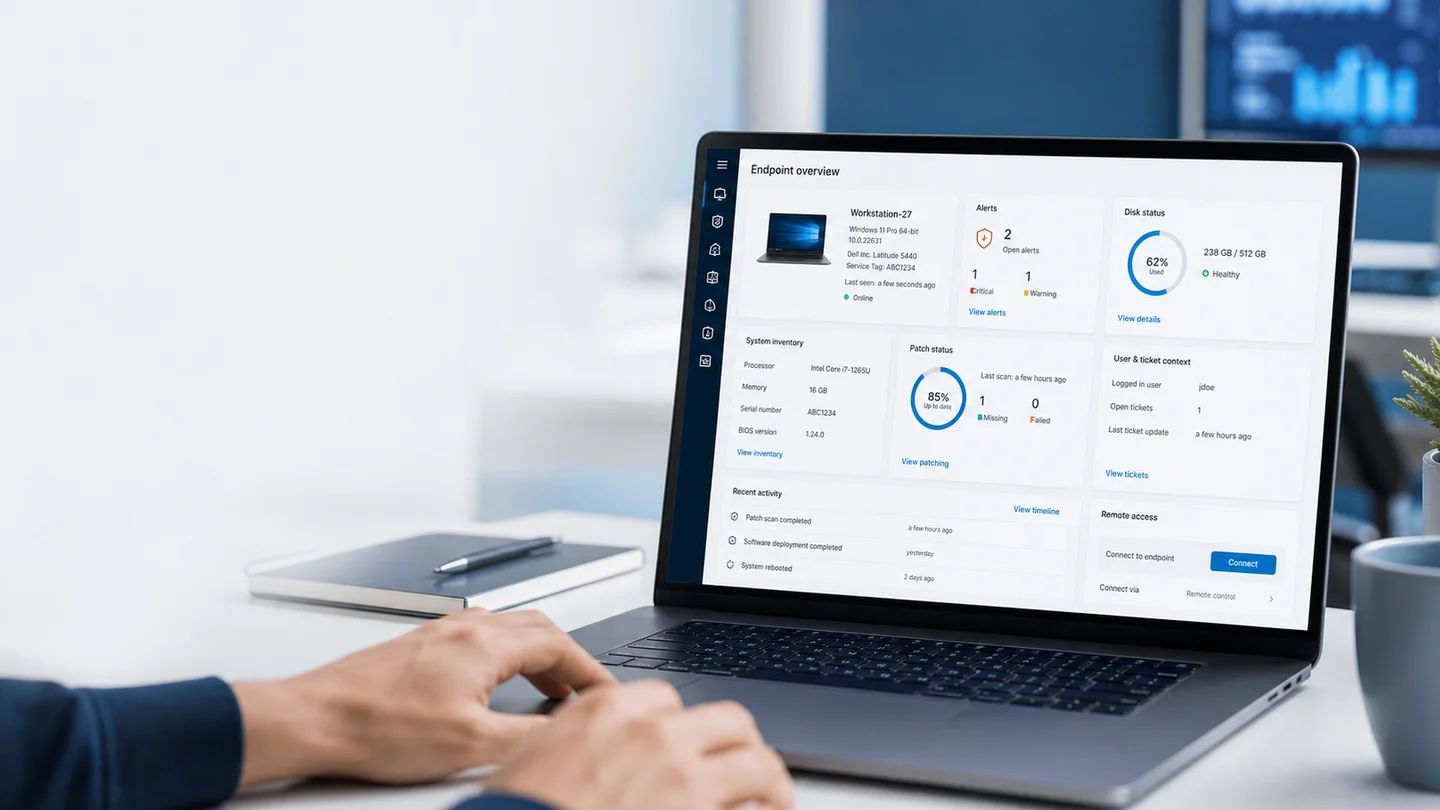
The technician no longer arrives blind. Before opening a session, they can review:
- whether the endpoint is online;
- operating system;
- hardware;
- installed software;
- recent alerts;
- disk status;
- pending patches;
- action history;
- ticket or customer context.
That's the difference. It's not just getting in. It's getting in with judgment.
3. Inventory: what remote access doesn't organize by itself
A remote access tool can let you enter a device. It doesn't necessarily give you an operational inventory of the whole fleet.
Without inventory, everything becomes memory:
- "I think that customer has 14 computers";
- "that laptop was Windows 10 or 11";
- "I don't know whether they still have that software";
- "let me connect to check";
- "ask the user which computer it is".
That gets expensive.
CIS Control 1 puts enterprise asset inventory at the foundation because you can't protect or manage what you don't know. In daily operations, that means if you don't know which endpoints exist, what they run, and which ones stopped reporting, every ticket starts from zero.
RMM centralizes that map. Not perfectly. Not magically. But far better than a loose spreadsheet or one technician's memory.
4. Patching: this is where the difference gets serious
With TeamViewer or AnyDesk, you can connect to a computer and install a patch manually. Of course.
But patching isn't just "can I install one update?"
The real problem is:
- which endpoints are pending;
- which ones failed;
- which ones need a reboot;
- which ones are critical;
- which ones belong to sensitive clients;
- which ones remain exposed after the maintenance window.
NIST SP 800-40 Rev. 4 frames enterprise patch management as preventive maintenance and covers planning, prioritizing, applying, and verifying updates. That word, verifying, is what many teams lose when they rely only on remote access.
RMM helps turn patching into a process:
- detect pending updates;
- group endpoints;
- run maintenance;
- review failures;
- document results;
- repeat where needed.
Without that layer, patching becomes "I'll connect when I remember" or "Windows Update will handle it." You learn the hard way that not every endpoint ended up in the same state.
5. Alerts: don't let the user become your monitoring system
When you only use remote access, the user often becomes the alert.
And that gets costly:
- full disk -> user can't work;
- disabled antivirus -> nobody notices;
- offline endpoint -> you learn when it's urgent;
- stopped service -> the customer calls angry;
- failed patch -> it shows up weeks later.
RMM helps you detect signals before the user starts the fire.
It doesn't mean you prevent every issue. It means you can see issues earlier, prioritize better, and act with less chaos.
For an MSP, that changes the customer conversation. You're no longer just "the person who connects when something breaks." You become the team keeping the operation visible.
6. Security: a remote session shouldn't live alone
Remote access has power. A lot of it.
So it shouldn't operate as a shared credential, a list of IDs in chat, or a tool detached from the rest of your technical controls.
The CISA guide for securing remote access software recommends controls such as MFA, account management, secure configuration, and monitoring. That applies whether you use standalone remote access tools or an RMM.
The difference is that a well-governed RMM can connect the remote session with:
- technician identity;
- permissions;
- managed endpoint;
- customer or tenant;
- action history;
- alert context;
- closure or follow-up.
That doesn't remove risk. It reduces improvised support.
7. Quick table: RMM vs TeamViewer and AnyDesk
| Need | TeamViewer / AnyDesk | RMM |
|---|---|---|
| Get into a computer | Very strong | Included or integrated depending on the platform |
| Help a user live | Very strong | Part of the support workflow |
| Centralized inventory | Limited or separate | Central by endpoint |
| Continuous monitoring | Not the main focus | Core capability |
| Operational alerts | Limited or external | Integrated with endpoint state |
| Patch management | Manual or separate | Process, follow-up, and evidence |
| Bulk actions | Limited or external | Part of the operating workflow |
| Evidence for client/MSP work | Partial | Connected to endpoint, action, and result |
| Multi-client scale | Requires manual discipline | Designed for fleet operations |
Get into a computer
Very strong
Included or integrated depending on the platform
Help a user live
Very strong
Part of the support workflow
Centralized inventory
Limited or separate
Central by endpoint
Continuous monitoring
Not the main focus
Core capability
Operational alerts
Limited or external
Integrated with endpoint state
Patch management
Manual or separate
Process, follow-up, and evidence
Bulk actions
Limited or external
Part of the operating workflow
Evidence for client/MSP work
Partial
Connected to endpoint, action, and result
Multi-client scale
Requires manual discipline
Designed for fleet operations
Simple read:
TeamViewer and AnyDesk are excellent for connecting. RMM is for managing.
8. When TeamViewer or AnyDesk is enough
Not everything needs RMM on day one.
A remote access tool may be enough if:
- you provide occasional support;
- you manage very few devices;
- you don't provide monthly maintenance;
- you don't need reports;
- you don't sell managed services;
- you don't track patches;
- you don't need live inventory;
- the customer only calls when something breaks.
In that case, remote access can solve the main need: get in, check, and leave.
9. When you need RMM
You need RMM when the work stops being an event and becomes an operation.
Clear signs:
- you have several clients with mixed endpoints;
- you don't know which devices are offline;
- you don't know which patches failed;
- you check computers one by one;
- you use spreadsheets for inventory;
- you depend on chat for follow-up;
- you don't have maintenance evidence;
- every technician works differently;
- a customer asks for a monthly report;
- you want recurring service, not only emergencies.
At that point, RMM stops being "another tool" and becomes your operating console.
10. Where Lunixar RMM fits
Lunixar RMM is built for independent technicians, small MSPs, and IT teams that want to move from reactive support to context-driven operations.
Instead of jumping between remote access, loose spreadsheets, chats, and memory, you can centralize:
- device monitoring;
- inventory;
- alerts;
- patch management;
- remote connection;
- reports and follow-up.
You don't need to abandon remote access as a concept. You need to stop depending only on it.
If you manage customer endpoints, Lunixar RMM helps answer a more important question than "can I connect?"
Do I know what's happening before I open the session?
Sources Used
- TeamViewer: TeamViewer Remote documentation
- AnyDesk Help Center: Connecting to a remote device
- CISA: Guide to Securing Remote Access Software
- NIST SP 800-40 Rev. 4: Guide to Enterprise Patch Management Planning
- CIS Control 1: Inventory and Control of Enterprise Assets