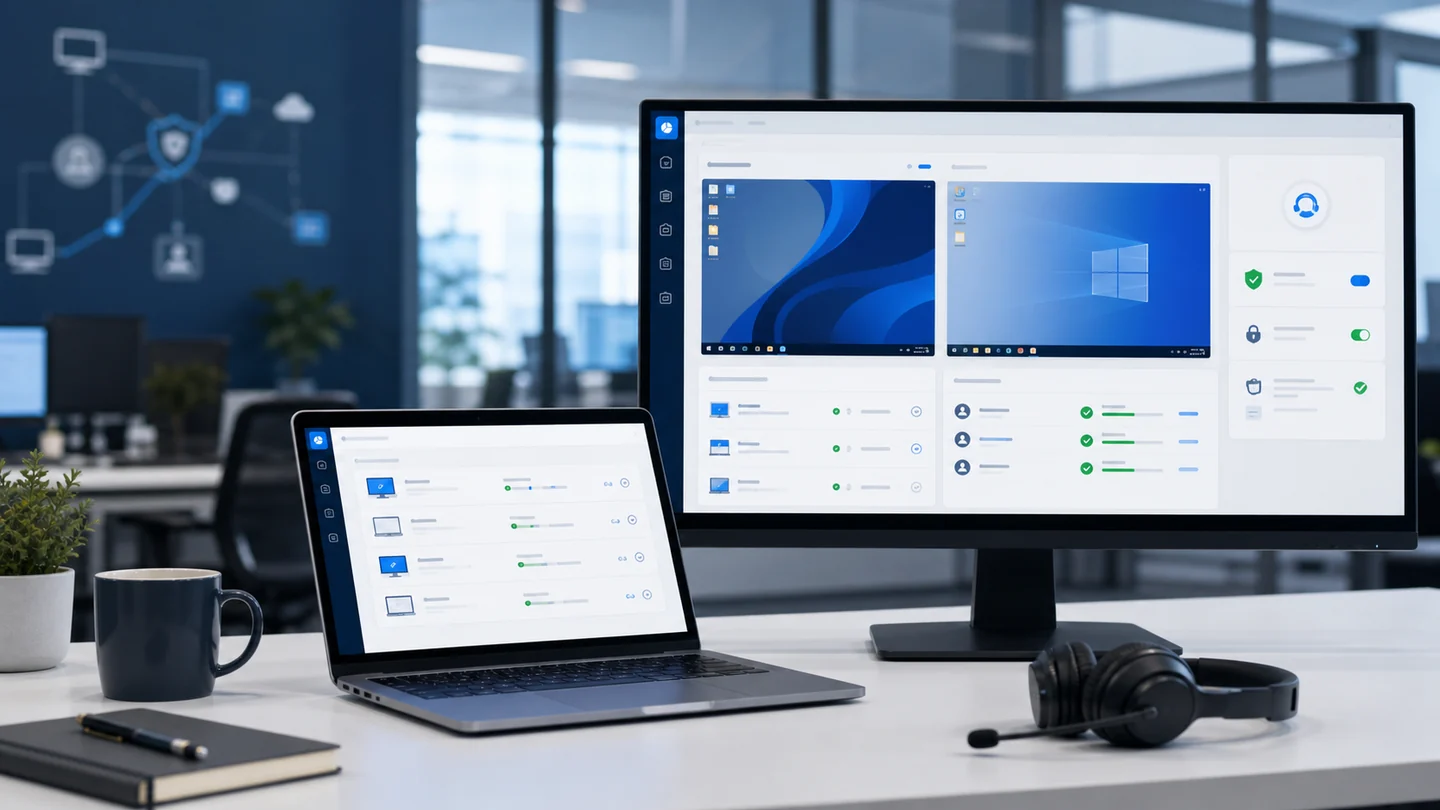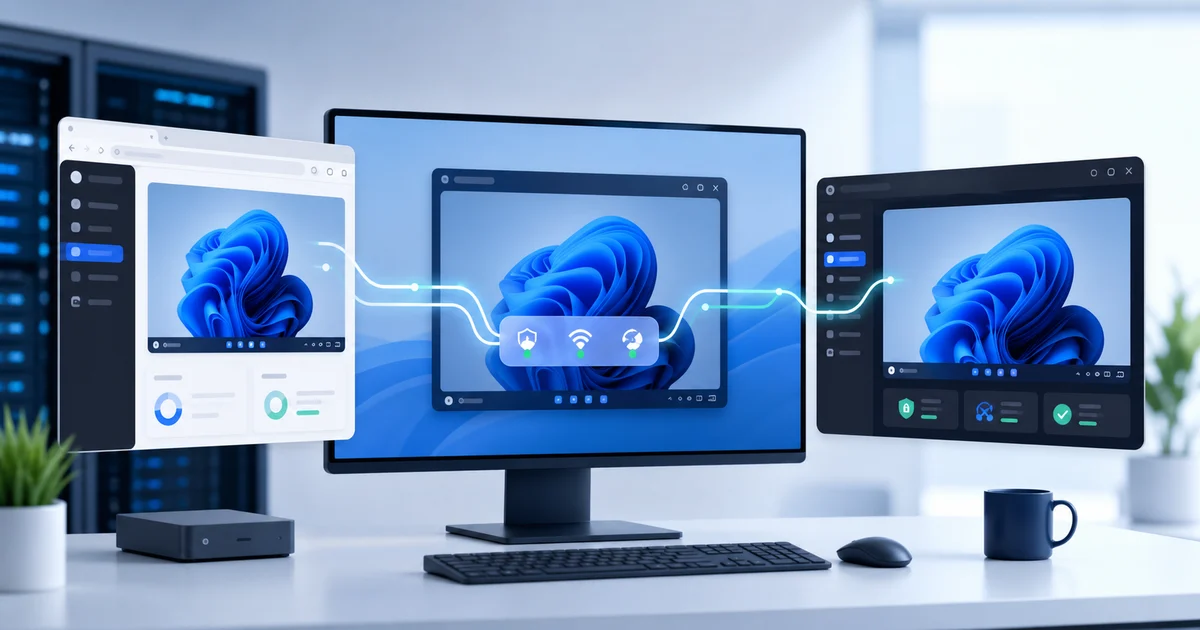


The connect button is tempting.
The user is waiting. The ticket is open. And you want to jump in now.
But before opening a remote session, five minutes of context can save thirty minutes of guessing.
When you connect blind, the problem changes. You start asking what happened, clicking around, hunting for clues late, and documenting after the fact. For an MSP or IT team managing many endpoints, that workflow catches up with you fast.
The remote session should be the last step before action, not the first attempt to understand the case.
1) Confirm who asked for help and why
Before touching the endpoint, confirm the request.
Not just the user's name. The reason.
- Did the user request support, or did someone request it for them?
- Is there a ticket, call, alert, or internal note?
- Does the endpoint belong to the right user?
- Does the technician have permission for that organization or client?
- Does the session require visible user approval?
This sounds basic. But it prevents awkward mistakes: connecting to the wrong device, working a duplicate case, starting a session without context, or solving something nobody formally requested.
CISA's remote access software guidance emphasizes account controls, MFA, monitoring, and secure configuration. In daily support terms, a remote connection should not sit outside identity, permissions, and activity records.
2) Check endpoint health before opening the screen
An endpoint is not just a remote screen.
It is a machine with state.
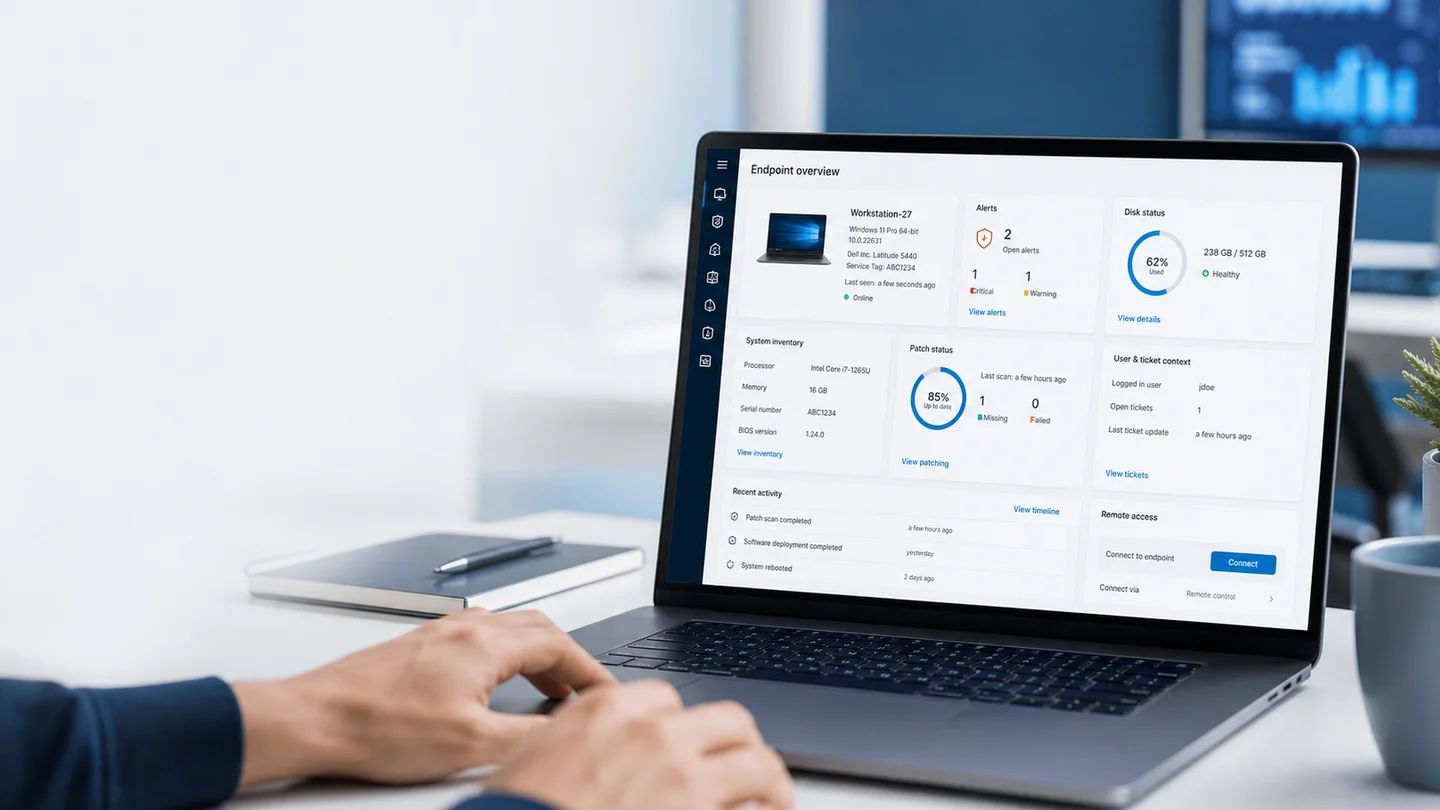
Before connecting, check basic signals:
- Is it online, or did it lose contact a while ago?
- Did the agent report recent activity?
- Is disk space low?
- Have CPU or RAM stayed high?
- Did the device reboot recently?
- Are critical services stopped?
- Is the user reporting slowness even though the device was already saturated?
That connects directly with device monitoring. If you already see a nearly full disk, you do not need to start by asking, "what feels slow?" You already have a first hypothesis.
NIST SP 800-46 treats remote access as part of an architecture with policy, authentication, devices, and protections. The operational lesson is simple: do not review the session in isolation. Review the device you are about to touch.
3) Review recent alerts and security signals
Not every remote session starts as a support issue.
Sometimes it starts with an alert.
Before connecting, check for signals that change the plan:
- antivirus disabled;
- malware detected;
- SMART disk failure prediction;
- failed login bursts;
- account lockouts;
- recent privileged group changes;
- audit policy changes;
- security log cleared.
If a security alert exists, the session is no longer "let me see what is going on." It is a case that needs more care: validate identity, avoid unnecessary changes, preserve evidence, and document each step.
It is also worth using external source context. CISA has warned about malicious use of legitimate RMM software. That does not mean avoiding RMM; it means every connection needs purpose, permission, and traceability.
4) Compare inventory, patches, and recent changes
When a user says "it worked before," there is usually a "before" worth checking.
That is where inventory matters.
Before connecting, look for recent changes:
- software installed or removed;
- a new application version;
- driver updates;
- hardware changes;
- pending patches;
- repeated reboots;
- an application showing up in several tickets for the same client.
This context prevents long sessions where the technician manually checks what the system already knows. If the endpoint changed since the last review, that change deserves attention.
This connects with the weekly RMM console review. If you already review alerts, inventory, patches, and pending work every week, you do not start from zero when a ticket arrives.
5) Decide whether you need to connect at all
Not every case requires opening the screen.
That is the point.
If the issue is low disk space, a stopped service, pending patch, Defender alert, or stale inventory, you may be able to move the case forward from the console before interrupting the user.
The difference between remote support and remote access is exactly here: remote access means getting in; remote support means resolving with control.
Microsoft describes Conditional Access as a policy engine that uses signals such as user, device, location, application, and risk to decide what to allow or require. The same idea applies well to support: before you allow yourself to "get in," review signals. That is not bureaucracy. It is context for a better decision.
6) Connect, act, and leave evidence
With context, the session changes.
You are not connecting to explore. You are connecting with a plan.
The closure should make clear:
- who authorized or requested the session;
- which endpoint was reviewed;
- which alerts or signals existed beforehand;
- which action you performed;
- what you validated afterward;
- what remains pending;
- whether the client needs to decide anything.
That helps the next technician avoid starting over. It also helps when the client asks what was done, why it was done, and whether the issue is closed.
If you also use tickets inside the RMM, the flow gets stronger: endpoint, session, alerts, and closure stay connected. The guide on support tickets in an RMM covers that part: the point is not just recording work, but keeping continuity.
Sources
- CISA: Guide to Securing Remote Access Software
- CISA: Protecting Against Malicious Use of Remote Monitoring and Management Software
- NIST SP 800-46 Rev. 2: Guide to Enterprise Telework, Remote Access, and BYOD Security
- Microsoft Learn: Conditional Access overview
Closing
Before connecting to an endpoint, check context.
Not to slow yourself down.
To enter better.
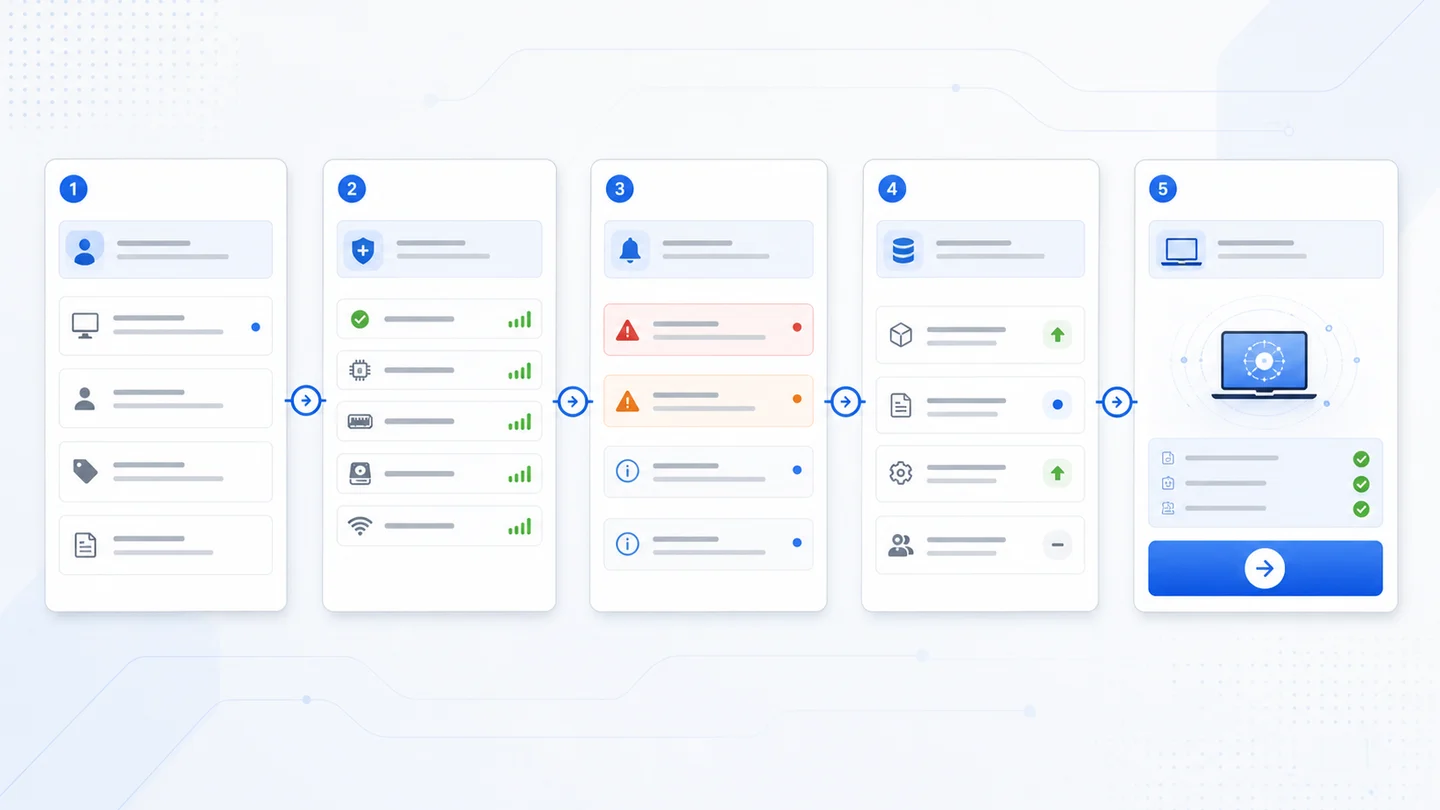
The right workflow is not "connect and then understand." It is request, endpoint, alerts, inventory, decision, session, and evidence.
With Lunixar RMM, that context can live together: remote connection, monitoring, inventory, alerts, tickets, and follow-up. The technician does more than get into the computer. They enter with judgment, resolve with fewer loops, and leave evidence for the next step.