

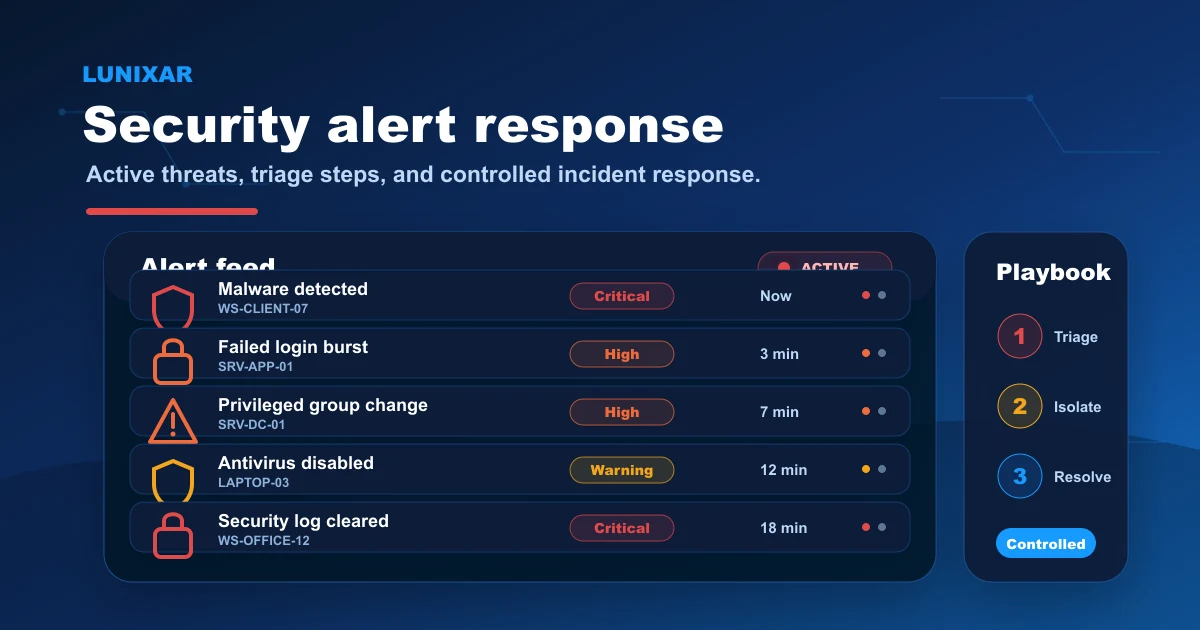
A security alert fires. Now what?
That's the question many IT teams don't have a clean answer to. They know something happened, but the response is improvised: check the device, ask the user, try something, wait and see. That costs time — and in real incidents, time is exactly what you don't have.
This playbook covers the security alerts available in Lunixar RMM: what each one means, what context to check first, and what actions to take to close the loop. No improvising.
1) Before you react: context changes everything
When an alert fires, the first impulse is to connect to the device immediately. But before opening a remote session, two things are worth checking in the portal:
- Inventory and snapshots: what software was recently installed? Did anything change in hardware or configuration? With up to 5 historical snapshots per device, the cause is often right there before you need to connect.
- The device's alert history: is this the first time this alert has fired, or is it a pattern? An
AntivirusDisabledthat shows up every week on the same device tells a different story than one that appears for the first time.
That prior context cuts diagnosis time and prevents actions that don't fit the situation.
2) Antivirus alerts: the three you can't ignore
AntivirusDisabled The antivirus is off. It could be a user who turned it off "because it was slowing things down," an app that disabled it during installation, or something more serious.
Response flow:
- Check inventory: was any new software recently installed?
- Run
UpdateSignaturesto make sure definitions are current. - Run
QuickScanto confirm there are no active threats. - Re-enable the antivirus if it was manually disabled.
- If the antivirus keeps disabling itself, escalate — that can be a sign of active infection.
MalwareDetected Defender found something. The alert reaches you before the user reports it — if they ever do.
Response flow:
- Check the inventory snapshot: is there any unknown software installed?
- Run
UpdateSignaturesfirst — current definitions may catch what older ones missed. - Run
FullScanfor a complete analysis. - If Defender already identified the threat, use
RemoveThreatsto eliminate it. - Confirm Defender's status is clean after the action completes.
Actions follow this cycle: pending → processing → ready (or failed if something went wrong). Monitor that status before calling the incident closed.
DefenderExclusionAdded An exclusion was added to Windows Defender. There are legitimate cases (specific software that generates false positives), but in uncontrolled environments this is a red flag.
Response flow:
- Identify what exclusion was added and when.
- Check whether it matches any recent software installation in the snapshot.
- If there's no clear justification, review it with the user or the device administrator.
- Run
QuickScanto verify there's no active activity under that exclusion.
3) Authentication alerts: volume as the signal
FailedLoginBurst Multiple failed login attempts in a short period. The threshold evaluates volume over time, not isolated spikes.
It could be a user who forgot their password. It could be a brute-force attack from inside the network or from a compromised account.
Response flow:
- Identify the affected account and where the attempts are coming from.
- If the attempts are from a known user account, confirm with the user.
- If the attempts are from a service account or unknown origin, lock the account immediately and escalate.
- Check whether other alerts exist on the same device or other devices in the same network segment.
AccountLockoutBurst Multiple accounts locked in a short window. More serious than failed attempts: it means the attempts reached the lockout threshold, implying volume and persistence.
Response flow:
- Identify how many accounts are locked and whether the pattern is on one device or across several.
- If it's a single device, review active processes and the security event history.
- If it's across multiple devices simultaneously, treat it as possible lateral movement or a coordinated attack.
- Don't unlock accounts without first investigating the source.
4) Audit alerts: what changes without anyone telling you
These are the easiest alerts to overlook and the most important ones to have documented.
SecurityLogCleared The security event log was cleared. There are very few legitimate reasons to do this. In most cases, someone tried to erase evidence of activity.
Response flow:
- Identify who performed the action (if prior logs allow it).
- Check whether other alerts fired on that device in the preceding hours.
- Treat this event as an indicator of compromise until proven otherwise.
- Run
FullScanon the affected device.
PrivilegedGroupMembershipChange Someone was added to a privileged group (Administrators, for example).
Response flow:
- Confirm whether the change was authorized (by IT or through an access management process).
- If there's no authorization record, investigate who made the change and when.
- If the added account shouldn't have privileges, revoke access immediately.
AuditPolicyChanged The system audit policy was modified. This can reduce what events get logged, allowing malicious activity to fly under the radar.
Response flow:
- Compare the current policy with the expected configuration.
- Restore the policy if it was modified without authorization.
- Check whether the change coincides with suspicious activity in recent snapshots or alerts.
5) Defender actions: how the full cycle works
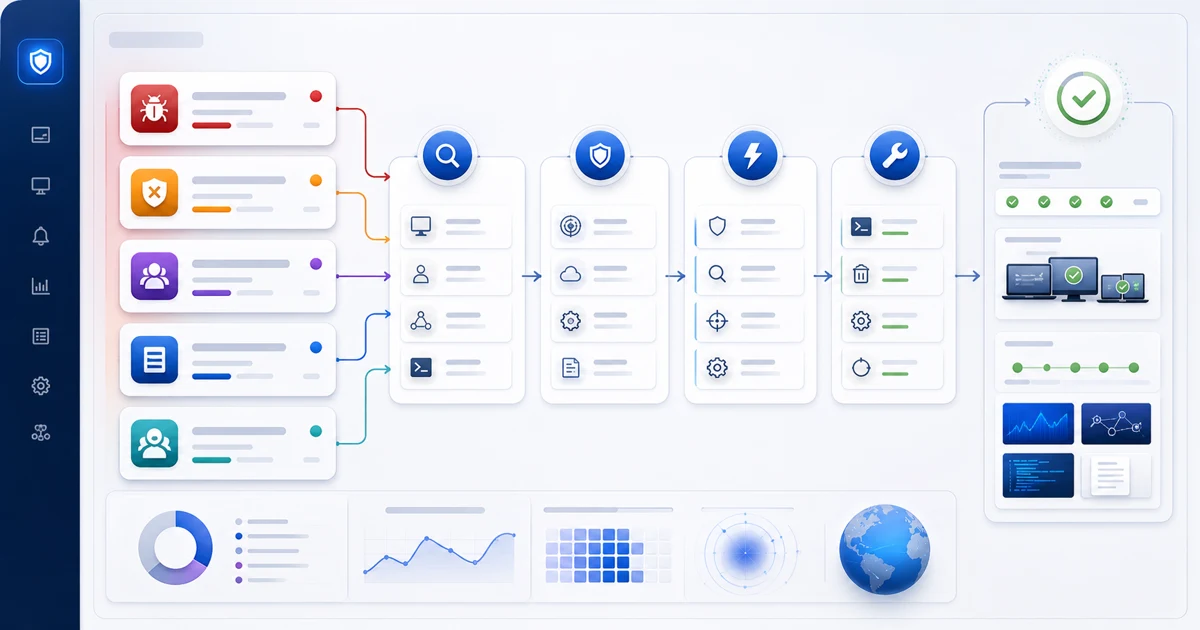
The four actions available on Windows Defender from the portal are:
QuickScan: scans the highest-risk areas. Faster — ideal as a first step.FullScan: complete system scan. Slower, but covers everything.UpdateSignatures: updates virus definitions. Always worth running before a scan.RemoveThreats: removes threats Defender has already identified.
An action's cycle follows these states: pending (queued) → processing (running on the device) → ready (completed) or failed (something went wrong during execution).
Don't close an incident until you see the ready status. If the status stays at failed, check the agent's connectivity and whether the Defender service is active on the device.
These actions also work in bulk: if an incident affects multiple devices, you can launch UpdateSignatures + FullScan across the entire affected fleet from the portal without connecting to each device individually.
Closing
Security alerts have no value if there's no clear response flow. The difference between a team that contains an incident in 20 minutes and one that discovers it three days later isn't luck — it's process.
With a clear playbook per alert type, inventory context before acting, and Defender actions available from the portal, the cycle alert → diagnosis → action → verification becomes routine.
Lunixar RMM gives you the tools for that cycle: event-driven alerts, historical inventory snapshots, and remote Defender actions without needing a remote session. If you don't have it running on your fleet yet, the 2-week trial requires no credit card.
Related reading to keep going
If you want to turn this topic into a real operating workflow, continue with these guides: