



Support breaks down when everything looks urgent.
An endpoint is offline. A patch failed. A reboot is pending. A disk alert opened. Antivirus is disabled. A client is writing through chat.
If all of that lands in separate lists, the technician ends up prioritizing by memory, pressure, or noise. That does not scale.
An Action Center inside an RMM should turn scattered signals into a clear queue: what to handle now, what to schedule, and what to keep in follow-up.
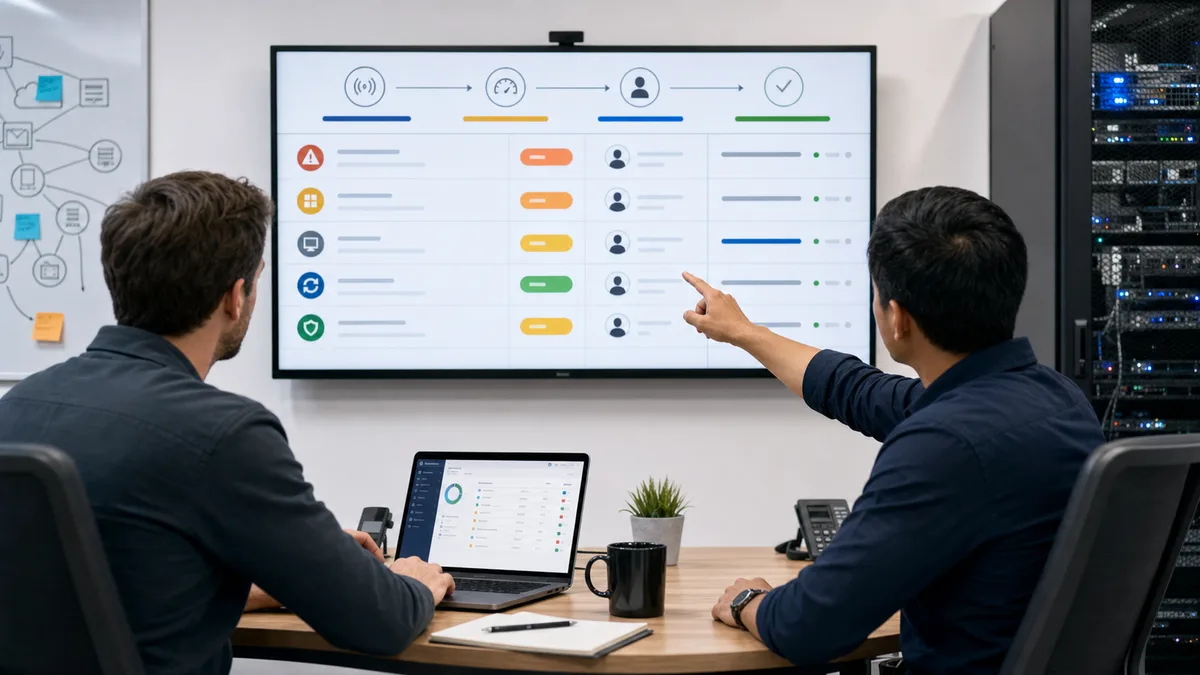
1) Collect signals before ordering work
The first mistake is prioritizing from a single screen.
An isolated alert may look simple. But when you connect it with inventory, patching, endpoint state, and security, the meaning changes.
The right question is:
which combination of signals makes this item matter more than another one?
A useful Action Center does not only show "something is pending." It should bring context together:
- open alerts;
- offline devices;
- failed patches;
- pending reboots;
- security signals;
- inventory state;
- client, site, or tenant;
- recent endpoint history.
That context lives close to device monitoring, patch management, and inventory. If each signal lives alone, operations fall back to manual judgment.
2) Separate severity from priority
Severity and priority are not the same thing.
An alert can be technically severe but affect a low-criticality machine that is currently powered off. Another can look minor but sit on a client server or an endpoint that already has repeated failures.
CISA uses NCISS as a repeatable mechanism for estimating incident risk with multiple verifiable signals. The lesson for an RMM is similar: do not order work by a single label.
A practical queue can combine:
| Signal | What it adds | How it changes priority |
|---|---|---|
| Endpoint impact | What happens if it fails | Moves servers, critical machines, and key users up |
| Current state | Online, offline, degraded | Decides whether action can happen now or needs follow-up |
| Security risk | Malware, antivirus, logins, sensitive changes | Separates normal support from investigation |
| Patch state | Failed, pending, needs reboot | Connects maintenance with remediation |
| Age of the item | How long it has been open | Keeps old work from becoming invisible |
Endpoint impact
What happens if it fails
Moves servers, critical machines, and key users up
Current state
Online, offline, degraded
Decides whether action can happen now or needs follow-up
Security risk
Malware, antivirus, logins, sensitive changes
Separates normal support from investigation
Patch state
Failed, pending, needs reboot
Connects maintenance with remediation
Age of the item
How long it has been open
Keeps old work from becoming invisible
3) Treat failed patches as work, not noise
A failed patch should not be buried inside a report.
NIST SP 800-40 frames patch management as preventive maintenance. That implies planning, execution, verification, and follow-up. If the patch fails, the work is not done: it changed state.
Inside an Action Center, a failed patch should answer:
- which endpoint failed;
- which update was attempted;
- whether the machine needs a reboot;
- whether the error is repeated;
- whether the endpoint is offline;
- which technician or maintenance window should handle it.
This connects with third-party patching with WinGet and RMM vulnerability management. If an update closes real exposure, the failure matters more than a minor update.
4) Do not mix health alerts and security without context
Low disk and disabled antivirus should not live as identical pending items.
Both matter, but they require different decisions.
Health alerts usually enter maintenance: check space, SMART, reboots, services, or availability. Security signals can require investigation: malware, privileged group changes, cleared logs, failed login bursts, or disabled antivirus.
NIST SP 800-61r3 connects incident response with risk management. For RMM support, that means the queue should not hide security signals among normal operational tasks.
5) Assign an owner and next action
A list without an owner is not a work queue.
Each pending item should have a clear next action:
- review;
- execute;
- contact the user;
- schedule a maintenance window;
- escalate;
- accept risk;
- close with evidence.
For MSPs, this matters even more because clients, sites, and commercial priorities are mixed together. A technician should not open five screens to know whether an item belongs to a critical client, whether it was already handled yesterday, or whether it needs approval.
An Action Center should turn signals into responsibility: who takes it, what they should do, and when it gets reviewed.
6) Verify before closing
Closing quickly feels good. Closing without proof creates rework.
An action should end with evidence:
- the endpoint came back online;
- the patch was installed;
- the reboot completed;
- the alert stopped appearing;
- the risk was accepted with a reason;
- the false positive was documented;
- the client was informed when needed.
That approach makes the weekly RMM console review more useful. You are not reviewing an endless pile of pending items; you are reviewing what stayed open, what changed, and what needs a decision.
Lunixar RMM connects monitoring, inventory, alerts, patching, and security so support does not depend on memory or loose chats. The goal of an Action Center is not to show more cards. It is to help you decide the right next piece of work.
To evaluate the full flow, review device monitoring, alerts, and Lunixar RMM for MSPs.