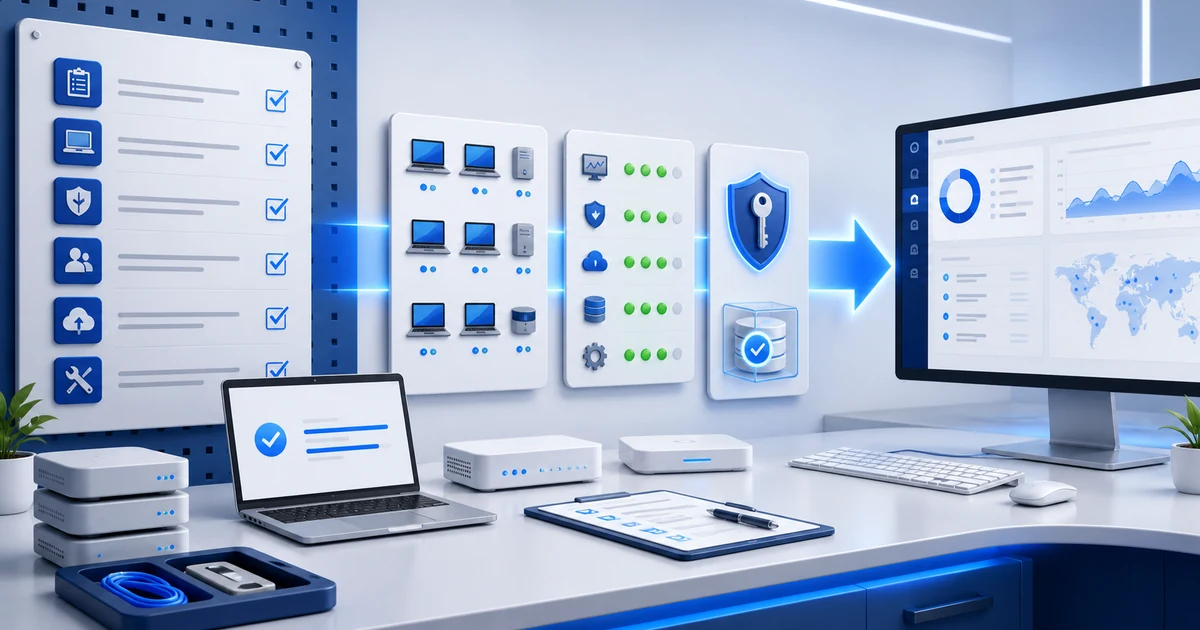



A client does not need another dashboard.
They need to understand what their IT service is preventing, improving, and still needs from them.
Which endpoints exist. Which software changed. Which patches are missing. Which alerts were handled. Which risks remain open. Which decisions need approval.
That is where an RMM report becomes useful. Not as a giant export nobody reads, but as a client-ready view of state, progress, and technical debt.
A report is proof of value
Preventive IT work is easy to miss when nothing fails. A report gives it a clear, repeatable shape: it shows the coverage you maintain, the problems you addressed, and the decisions that cannot wait.
For a client, a useful monthly report should answer three questions in a few minutes:
- What are you managing for us? Managed endpoints, inventory coverage, and meaningful changes.
- What did you prevent or resolve? Patches applied, alerts handled, and risks investigated.
- What needs our attention next? Open exceptions, approvals, budget decisions, or follow-up dates.
That is more useful than a dashboard screenshot because it connects technical activity to a decision. It also gives the MSP a consistent way to show the value of recurring service.

1) Start with the report question
The common mistake is exporting everything and hoping the client finds value.
A good report starts with a concrete question:
which decision should this document make easier?
A monthly MSP client report is not the same as an internal IT cut, a patch review, or an evidence package for an audit.
An RMM should help separate reports by intent:
- executive client status;
- hardware and software inventory;
- patch coverage;
- security posture;
- handled and pending alerts;
- relevant changes during the period;
- evidence for follow-up or audits.
That workflow connects with inventory, patch management, and alerts. If the report does not answer a question, it becomes noise with a logo.
2) Report inventory as living evidence
Inventory should not be an annual snapshot.
CISA includes asset inventory in its Cybersecurity Performance Goals because knowing what exists reduces blind spots. For an MSP or IT team, that means the report should show coverage and changes, not only counts.
A useful inventory report should answer:
- how many endpoints are managed;
- which devices appeared or stopped checking in;
- which operating systems they run;
- which hardware changed;
- which software is installed;
- which machines lack a clear owner;
- which endpoints need enrollment or review.
This matters especially after network discovery. Finding devices is not enough. They need follow-up: manage, monitor, exclude with a reason, or assign an owner.
3) Turn patching into verifiable status
Patch management does not end when a task runs.
NIST SP 800-40 frames patching as preventive maintenance: plan, execute, verify, and follow up. An RMM report should reflect that full cycle.
For clients and audits, the patch report should include:
| Field | Why it matters |
|---|---|
| Endpoint | Shows the real scope of the item |
| Update type | Separates OS, application, and third-party updates |
| Status | Installed, pending, failed, or needs reboot |
| Attempt date | Shows activity and recurrence |
| Verification | Avoids closing by command executed |
| Next action | Turns the item into work |
Endpoint
Shows the real scope of the item
Update type
Separates OS, application, and third-party updates
Status
Installed, pending, failed, or needs reboot
Attempt date
Shows activity and recurrence
Verification
Avoids closing by command executed
Next action
Turns the item into work
That approach connects with third-party patching with WinGet and RMM vulnerability management. If a patch reduces real exposure, the report should make it visible.
4) Separate security from normal maintenance
An alert report should not mix everything as if it has the same meaning.
Low disk, offline endpoint, malware detected, disabled antivirus, and cleared logs are different signals. Some are maintenance. Others may require investigation.
NIST SP 800-137 describes continuous monitoring as a way to maintain awareness of state, threats, and vulnerabilities. In RMM operations, that means reporting security as its own section, not as a lost row among tickets.
Include signals such as:
- disabled antivirus;
- malware detected;
- privileged group changes;
- failed login bursts;
- cleared security logs;
- modified audit policies;
- accepted risks or documented false positives.
This connects with the RMM Action Center because the report does not only look backward. It should also show what comes next.
5) Use CSV, XLSX, and PDF for different jobs
Not every format serves the same purpose.
A PDF is useful for summary, presentation, and frozen evidence. An XLSX lets the client filter, sort, and review detail. A CSV is useful for integration, analysis, or import into another tool.
The problem appears when you try to solve everything with one file.
A practical delivery can look like this:
- PDF: executive summary, findings, pending items, and next steps.
- XLSX: endpoint, software, patch, alert, and exception details.
- CSV: clean export for reconciliation, BI, or external import.
For MSPs, this reduces commercial friction. The client gets a clear reading, and the technical team keeps actionable detail.
6) Close with follow-up, not just delivery
Sending the report does not close the loop.
A useful report should end with:
- open items;
- owners;
- review dates;
- accepted risks;
- justified exceptions;
- relevant period changes;
- decisions the client needs to make.
That closing section gives continuity to the weekly RMM console review. You do not start every week from zero; you review what changed since the last cut.
Lunixar RMM connects inventory, monitoring, alerts, patching, vulnerabilities, and operations so reports do not depend on manual screenshots. The goal is not to produce more documents. It is to deliver evidence that helps people decide.
To evaluate the full flow, review Lunixar RMM for MSPs, inventory, and patch management.
A client-ready monthly report outline
Use this outline before adding more data. It keeps the report readable for a client while preserving a path to technical detail:
- Executive summary: the period, coverage, major improvements, and one-sentence overall status.
- What changed: new or removed endpoints, notable software or hardware changes, and completed work.
- Patch and security status: coverage, important exceptions, and any item that needs investigation.
- Open items and next actions: owner, due date, and the decision or approval needed.
- Technical detail: a linked or attached XLSX/CSV only when someone needs to filter the underlying data.
Before sending it, ask one final question: could a non-technical client explain the current state and the next decision after reading this? If not, reduce the raw data and make the action items clearer.