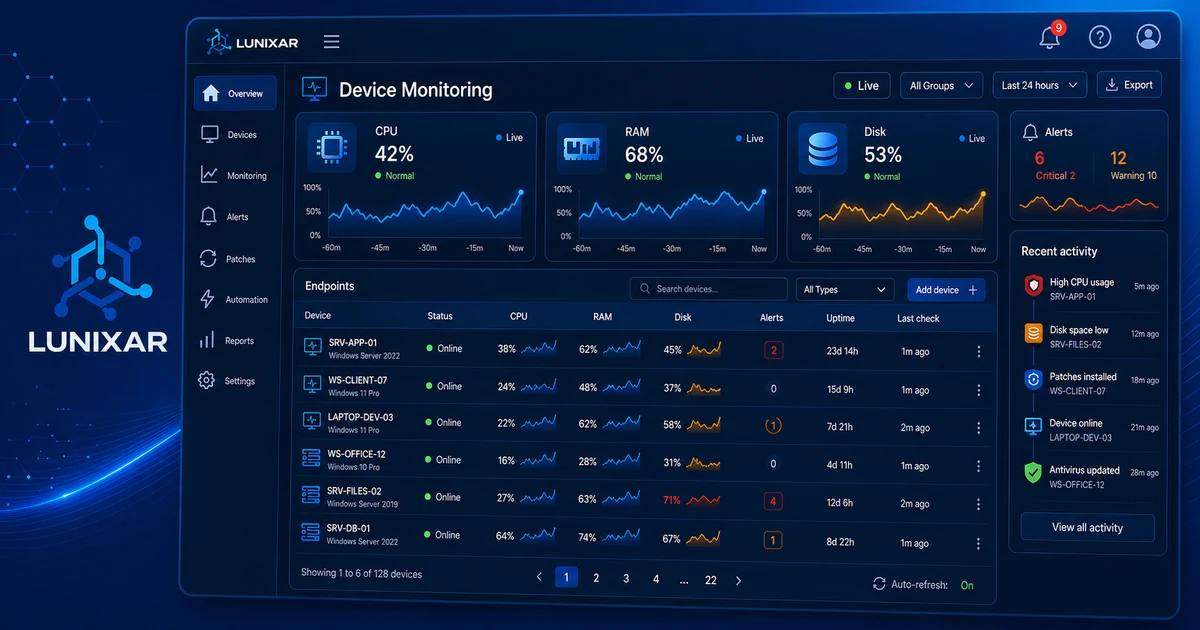


Some alerts save your day.
Some alerts only create noise.
The difference is the policy.
If you're starting with RMM, don't turn on every notification from day one. Start with a small operational policy: which signals matter, who owns them, when they escalate, and what evidence should be left behind.
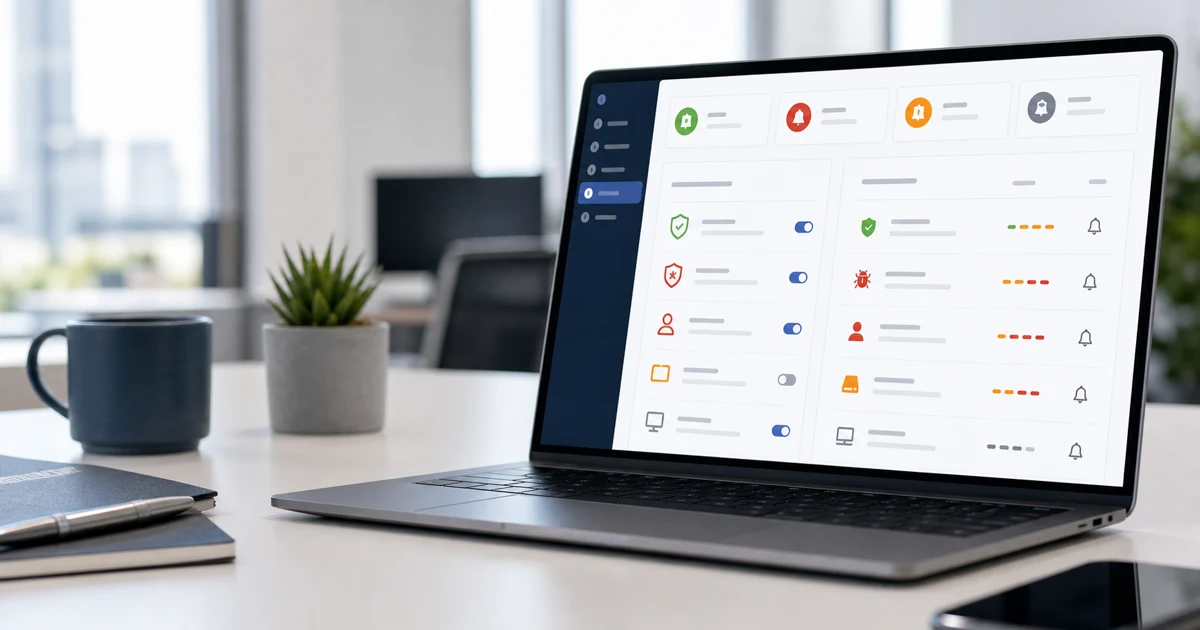
1) Start with a few alerts that actually hurt
The temptation is obvious: "let's alert on everything."
CPU, RAM, disk, antivirus, users, sessions, patches, services, every change. It sounds complete... until 80 emails arrive and nobody reads number 81.
For a first policy, choose signals with a clear action:
LowDiskSpace: you can still free space before the computer becomes useless.DiskSmartPredictedFailure: you have a window to back up or replace the drive.AntivirusDisabled: a Windows endpoint lost a basic protection layer.MalwareDetected: Defender found something and you need context.FailedLoginBurstorAccountLockoutBurst: it might be user error, but it might also be brute force or credential misuse.
You're not looking for perfection. You're looking for signals that make someone do something.
2) Separate security, continuity, and maintenance
Not every alert belongs in the same lane.
A malware alert isn't handled like low disk space. A burst of failed logins doesn't carry the same urgency as an offline endpoint you already knew was powered off.
Split your first policy into three groups:
| Group | Examples | Expected response |
|---|---|---|
| Security | MalwareDetected, AntivirusDisabled, SecurityLogCleared, PrivilegedGroupMembershipChange | Review context, run the security action, and document |
| Continuity | DiskSmartPredictedFailure, critical endpoint offline, full disk | Prevent downtime, back up, free space, or replace hardware |
| Maintenance | pending patches, stale inventory, expected changes | Schedule follow-up without interrupting urgent work |
Security
MalwareDetected, AntivirusDisabled, SecurityLogCleared, PrivilegedGroupMembershipChange
Review context, run the security action, and document
Continuity
DiskSmartPredictedFailure, critical endpoint offline, full disk
Prevent downtime, back up, free space, or replace hardware
Maintenance
pending patches, stale inventory, expected changes
Schedule follow-up without interrupting urgent work
This helps the technician avoid jumping from a minor alert to a critical signal as if both were equal.
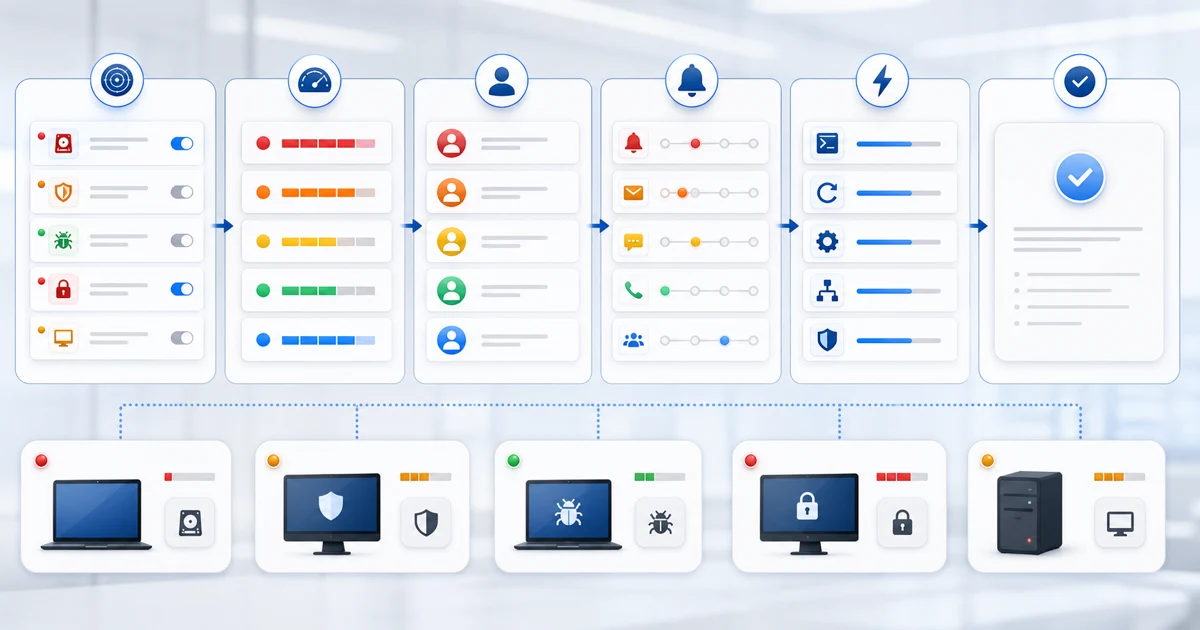
3) Define escalation before the fire starts
One isolated alert can wait.
A pattern can't.
Example: one failed login on a laptop might be a clumsy password attempt. A burst of failures on a privileged account, followed by a lockout, deserves another read. Same with disk space: 18% free might not be urgent, but 6% on a billing server at 9:00 on Monday will catch up with you.
Your policy should say:
- which alerts first-line technicians handle;
- which alerts escalate to the client owner;
- which alerts require immediate action;
- when to create a ticket;
- when to inform the client;
- what gets documented at closure.
As external references, CISA Cybersecurity Performance Goals emphasize detection, monitoring, and reporting capability for relevant threats. NIST SP 800-61 Rev. 3 also treats incident response as a prepared cycle, not improvisation.
4) Connect the alert with context, not just email
Email tells you something happened.
It doesn't solve it.
When an alert arrives, the technician needs quick context:
- which endpoint it is;
- who uses it;
- which recent alerts it has;
- what software and inventory it has;
- which patches are pending;
- whether this happened before;
- what action was taken last time.
That context works best near device monitoring, alerts, inventory and patch management. If every data point lives in a different tool, the technician loses minutes rebuilding the story.
5) On Windows, decide what action comes next
A good policy doesn't end at "we received an alert."
It ends in action.
For Windows endpoints with Defender, Lunixar RMM helps you move from signal to response with actions such as UpdateSignatures, QuickScan, FullScan, and RemoveThreats when applicable. Microsoft documents that Defender quick scans are usually the recommended option for scheduled or on-demand scans in most cases, alongside real-time protection.
That doesn't mean every alert needs a full scan. It means your policy should decide by severity:
AntivirusDisabled: review status and restore protection.MalwareDetected: update signatures, review details, and scan based on severity.DefenderExclusionAdded: validate whether the exclusion was authorized.SecurityLogCleared: treat it as a sensitive signal and review who made the change.
For Linux, keep expectations clear inside this flow: security inventory and visibility, not Defender remote actions. Linux patch management lives in the patching module, not in Defender security actions.
6) Use a minimum policy anyone can follow
The policy doesn't help if it only lives in the senior technician's head.
It needs to be visible, short, and repeatable.
A first version can look like this:
| Alert | Initial severity | Owner | Response time | Expected action | Closure evidence |
|---|---|---|---|---|---|
MalwareDetected | Critical | Security / senior tech | Today | Update signatures, review details, and scan based on severity | Scan result and action taken |
AntivirusDisabled | High | Assigned technician | Today | Validate status and restore protection | Final antivirus state |
DiskSmartPredictedFailure | High | Assigned technician | 24 hours | Back up, review replacement, and notify the client | Replacement or mitigation plan |
LowDiskSpace | Medium | First line | 48 hours | Free space or schedule cleanup | Space recovered and likely cause |
FailedLoginBurst | High if it affects a critical account | Security / client owner | Today | Review account, source, and pattern | Account reviewed and next step |
MalwareDetected
Critical
Security / senior tech
Today
Update signatures, review details, and scan based on severity
Scan result and action taken
AntivirusDisabled
High
Assigned technician
Today
Validate status and restore protection
Final antivirus state
DiskSmartPredictedFailure
High
Assigned technician
24 hours
Back up, review replacement, and notify the client
Replacement or mitigation plan
LowDiskSpace
Medium
First line
48 hours
Free space or schedule cleanup
Space recovered and likely cause
FailedLoginBurst
High if it affects a critical account
Security / client owner
Today
Review account, source, and pattern
Account reviewed and next step
It doesn't need to be perfect. It needs to prevent improvisation.
Quick template for your RMM alert policy
Copy this structure and adapt it per client:
``text If [alert] appears on [endpoint type], review [minimum context], run [expected action], create a ticket if [condition], escalate to [owner] if [condition], close only after documenting [result]. ``
Example:
``text If AntivirusDisabled appears on a Windows server, review Defender status and recent alerts, restore protection and run UpdateSignatures, create a ticket if protection doesn't return to a normal state, escalate to the client owner if it coincides with MalwareDetected, close only after documenting the final antivirus state. ``
FAQ: first RMM alert policy
Which alerts should I enable first in an RMM?
Start with alerts that have a clear action: LowDiskSpace, DiskSmartPredictedFailure, AntivirusDisabled, MalwareDetected, FailedLoginBurst, and AccountLockoutBurst. Then add signals based on the client type and endpoint criticality.
How do I avoid too many alerts?
Don't enable alerts without an owner, severity, and expected action. If an alert doesn't change a decision, it probably only adds noise. Review weekly which alerts were useful and which ones nobody handled.
Should every alert create a ticket?
No. Some alerts only need review or quick closure. Create a ticket when the issue needs follow-up, authorization, client communication, evidence, or multiple actions. If everything creates a ticket, the board becomes another inbox.
Which alerts are critical for MSPs?
Critical alerts usually affect security or continuity: malware, antivirus disabled, security logs cleared, privileged group changes, predicted disk failure, and login bursts on sensitive accounts.
Does every client need the same policy?
No. You can start with a common baseline, but servers, administrative workstations, point-of-sale devices, and user laptops don't carry the same impact. Tune the policy by criticality.
Close the loop: fewer alerts, better decisions
Your first RMM alert policy doesn't need to be huge.
It needs to be useful.
Start with security, continuity, and maintenance signals. Connect every alert with context. Define who responds. Document closure. Tune every week.
Lunixar RMM fits this workflow because it connects monitoring, alerts, inventory, patching, security, and remote access in one operating flow. If your alerts currently live as disconnected emails, the 2-week trial lets you validate the workflow with up to 5 devices, no card required, and full access.
You can keep going with these guides: